
In this article
Membership Payments Report
To access the Member Payments Report, log in with the appropriate membership privileges. Then click Membership in the top navigation and select Reports from the left-hand menu.
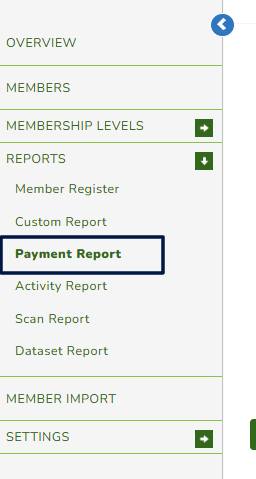
The Payments Report displays all transactions processed within the Membership Module.
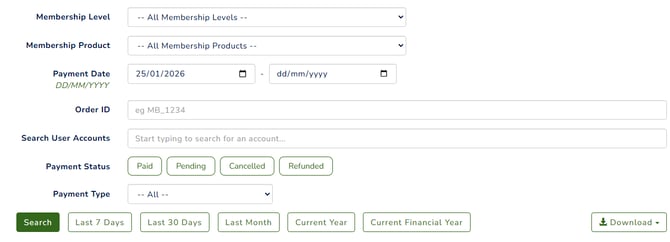
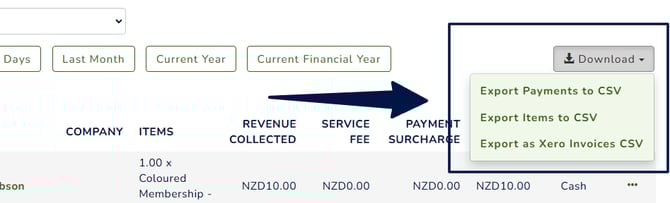
To export the report, download the data using the Download option from the dropdown menu.
If you use Xero and cannot see the Export to Xero button, you need to add a Xero Code in the External/Xero Accounting Code field under your Organisation Settings
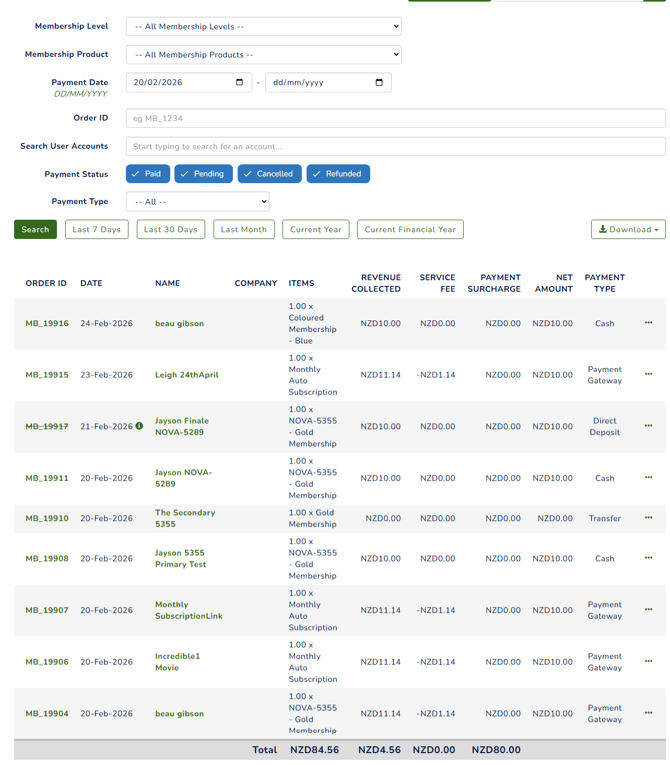
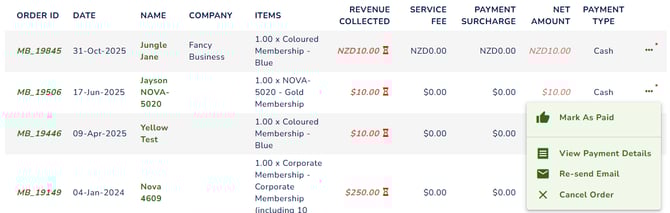
Your payments report will look similar to the below example :
Confirming, Cancelling, and Refunding Membership Payments
Confirm Payments
Confirming payments is only applicable for manual payments, such as cash, direct deposit, or cheque. This excludes online payments, as they are automatically approved by the system.
You can confirm payments from the Pending Members widget on your overview dashboard or from the Payments Report.
To confirm a payment in the Payments Report, click the three dots next to the transaction or click the red amount on the dashboard to view the payment details.
The payment details allow you to change the Payment Date if you received the payment on a different date and to leave a note against the transaction. You also have the option to view the invoice if needed.
Confirming a payment is different from approving a pending member’s membership. To approve a membership, you need to do it from the Pending Members dashboard or by navigating to the member’s account. Please see here: Approving or Rejecting Pending Members
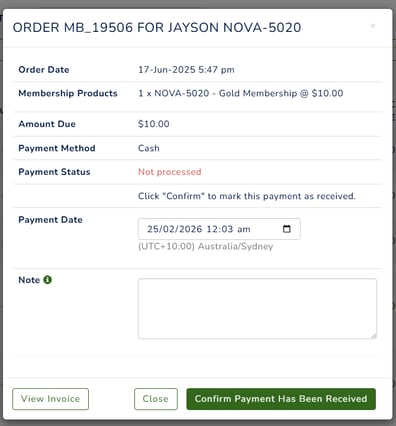
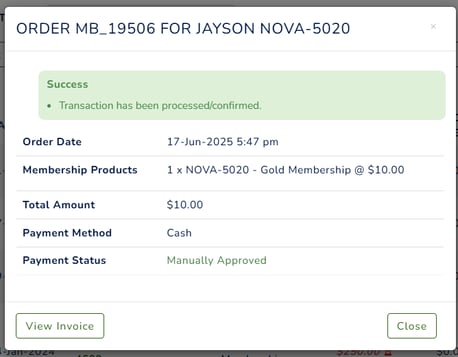
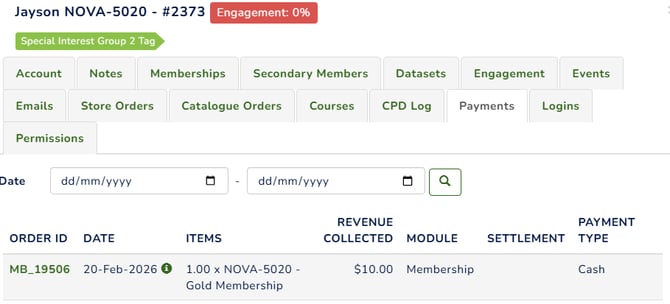
Click the Confirm Payment Has Been Received button to confirm the payment. Any note will appear under the Notes tab of the member’s account, and a tooltip will display on the payment date if it differs from the order date.
Cancel and Refund Payments
To cancel a payment, click the three dots next to the transaction. Click 'cancel order'
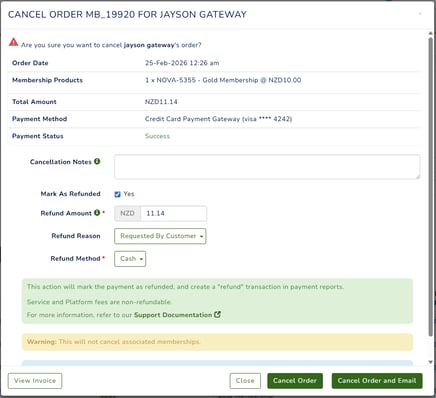
The pop-up screen will show you the following fields:
-
Cancellation Notes – Add any notes related to the cancellation.
-
Mark As Refunded –
-
If marked Yes, the transaction will be recorded as refunded in the system and will appear in the Refunded filter when searching.
-
If unmarked, the transaction will be recorded as cancelled.
-
-
Refund Amount – By default, the refund amount is the full price of the transaction. Change the amount if necessary.
-
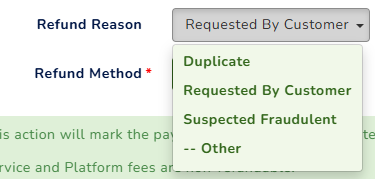
Refund Reason – Select the reason for the refund from the dropdown. If “Other” is selected, you have the option to enter custom text.
-
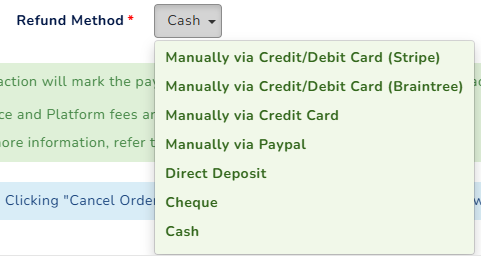
Refund Method – Choose the method to issue the refund. For more details, please see the messages on your pop-up screen.
-
Cancel Order - This will complete the cancellation of the transaction. The member will receive an automated email confirming the cancellation, including the updated invoice for the cancelled or refunded amount.
- Cancel order and email - This will complete the cancellation of the transaction. You also have the option to compose an email directly to the member.
Please read the system message that appears on your screen. Navigate to the member account to view the refunded or cancelled payment
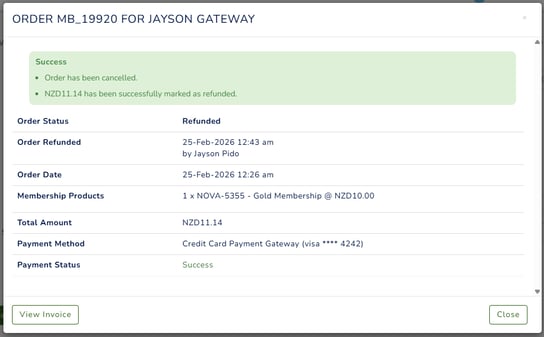
The Membership Module does not support automatic refunds. All refunds must be issued manually or outside the system.
Event Payments Report
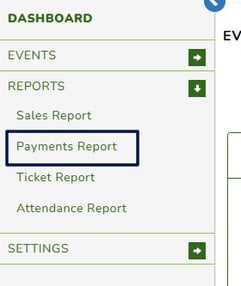
To access the Event Payments Report, from the events module, click on the 'Payments Report' link in the left navigation.
The Payments Report filter works the same way as the filters in other modules. For Event invoices, the prefix is EV.
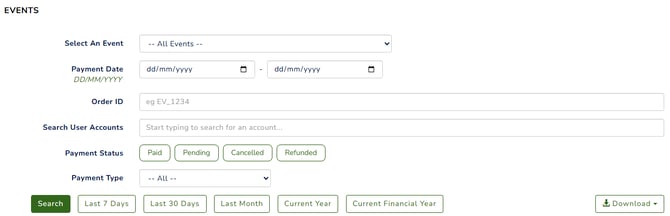
To export the report, download the data using the Download option from the dropdown menu.

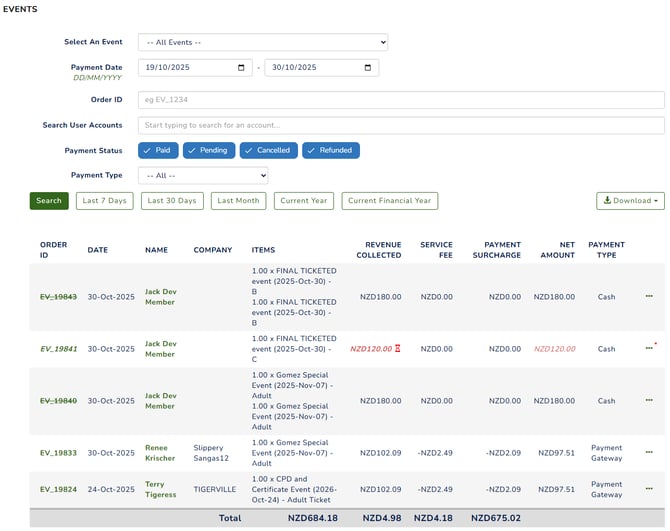
Confirming, Cancelling, and Refunding Events Payments
Confirm Payments
Confirming payments is only applicable for manual payments, such as cash, direct deposit, or cheque. This excludes online payments, as they are automatically approved by the system.
To confirm a payment in the Payments Report, click the three dots next to the transaction and select “View Payment Details,” or click the red amount on the dashboard to view the payment details.
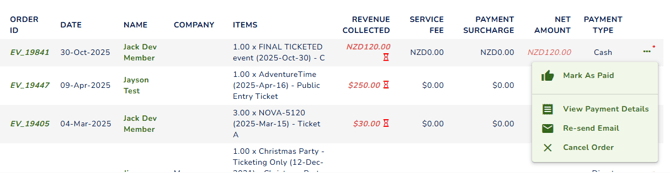
The payment details allow you to change the Payment Date if you received the payment on a different date for manual payments and to leave a note against the transaction. You also have the option to view the invoice if needed.
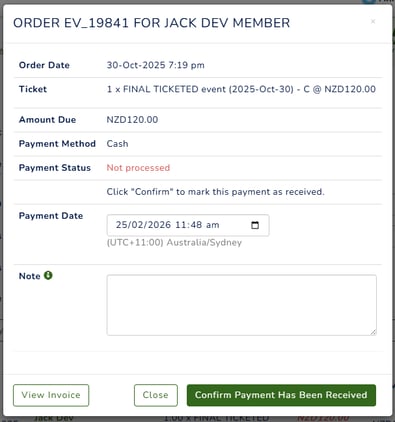
Click the Confirm Payment Has Been Received button to confirm the payment. Any note will appear under the Notes tab of the member’s account, and a tooltip will display on the payment date if it differs from the order date.
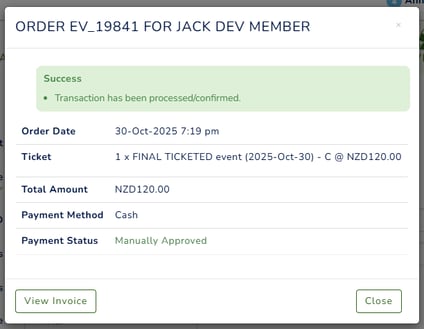
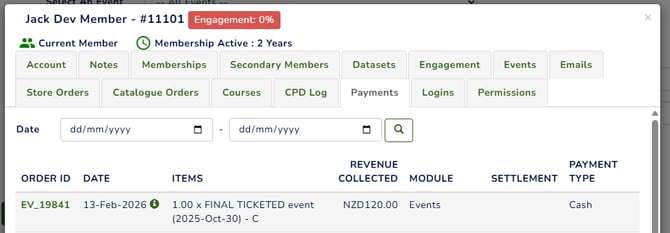
You can also confirm payments from the Pending Payments widget on your events dashboard. For more details, please see here: Event Reports and Dashboard
Cancel and Refund Payments
To cancel a payment, click the three dots next to the transaction. Click 'cancel order'

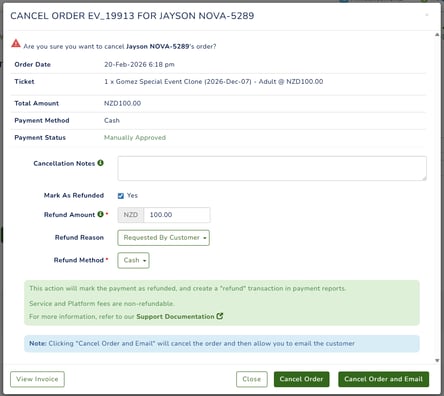
The pop-up screen will show you the following fields:
Online Payment
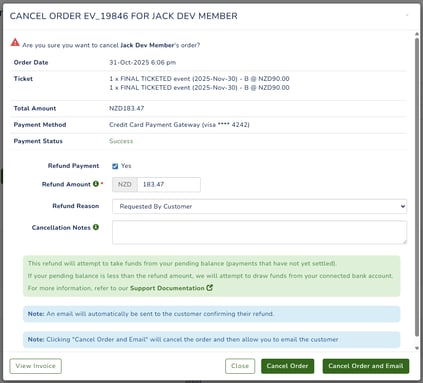
Cash or Manual Payments
-
Cancellation Notes – Add any notes related to the cancellation.
-
Mark As Refunded –
-
If marked Yes, the transaction will be recorded as refunded in the system and will appear in the Refunded filter when searching.
-
If unmarked, the transaction will be recorded as cancelled only.
-
-
Refund Amount – By default, the refund amount is the full price of the transaction. Change the amount if necessary.
-
Refund Reason – Select the reason for the refund from the dropdown. If “Other” is selected, you have the option to enter custom text.
-
Refund Method – Choose the method to issue the refund. Please note that this option only applies to manual payments, such as cash. This field is used for manually issuing refunds, while online payments are automatically refunded. For more details, please see the messages on your pop-up screen.
- Cancel Order - This will complete the cancellation of the transaction. The member will receive an automated email confirming the cancellation, including the updated invoice for the cancelled or refunded amount.
- Cancel order and email - This will complete the cancellation of the transaction. You also have the option to compose an email directly to the member.
The Events module is the only module that supports automatic refunds for online payments, meaning you can skip the manual refund process, as the funds will be returned to the registrant automatically through the system.
You can also cancel a registration and issue a refund from the Registration List. For more details, please see here: Event Cancellations & Refunds
Online Store Payments Report
To view the Online Store Payments Report, navigate to Module > Online Store, select Reports from the left-hand navigation, and then choose Payments Report.
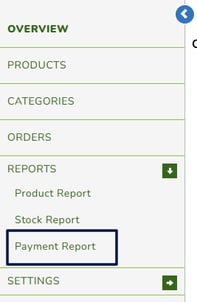
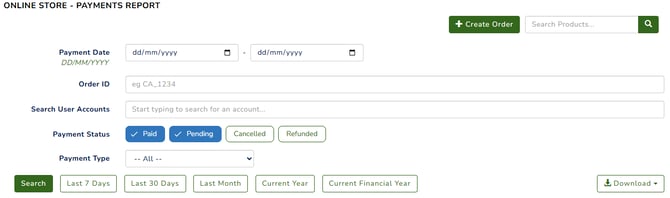
This filter works the same way as the other modules.
-
Payment Date – The date the payment was made.
-
Order ID – The invoice number. For online store transactions, the prefix is CA.
-
Search User Accounts – Search for a specific member account.
-
Payment Status – The current status of the payment (e.g., Pending, Paid, Refunded).
-
Payment Type – The method of payment used (e.g., Cash, Payment Gateway, etc.).
To export the report, download the data using the Download option from the dropdown menu.

To create a CSV that is compatible with import into your accounting software, select the 'Export As Xero Invoices CSV' button.
For more on the Online Store Payment Report, see this article
Confirming, Cancelling, and Refunding Online Store Payments
Confirm Payments
Confirming payments is only applicable for manual payments, such as cash, direct deposit, or cheque. This excludes online payments, as they are automatically approved by the system.
You can confirm payments from the Orders dashboard or from the Payments Report.
To confirm a payment in the Payments Report, click the three dots next to the transaction or click the red amount on the dashboard to view the payment details.
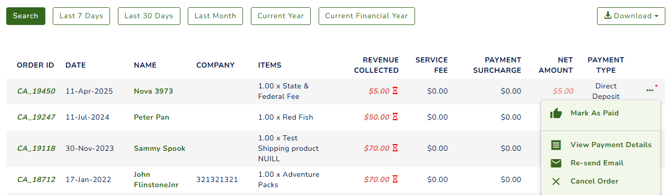
The payment details allow you to change the Payment Date if you received the payment on a different date for manual payments and to leave a note against the transaction. You also have the option to view the invoice if needed.
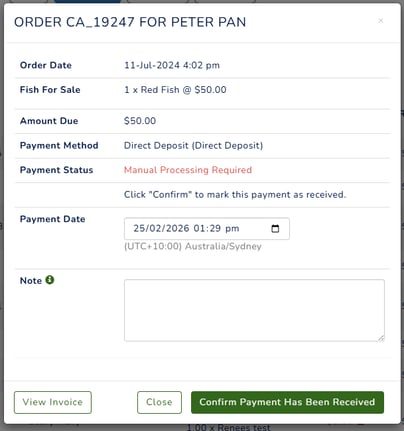
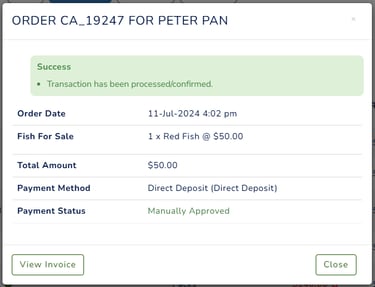
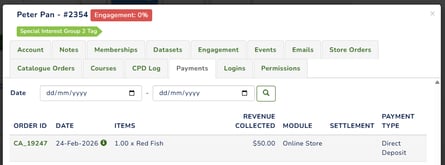
Click the Confirm Payment Has Been Received button to confirm the payment. Any note will appear under the Notes tab of the member’s account, and a tooltip will display on the payment date if it differs from the order date.
Cancel and Refund Payments
To cancel a payment, click the three dots next to the transaction. Click 'cancel order'

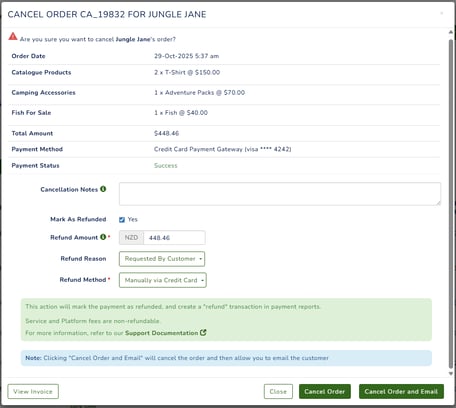
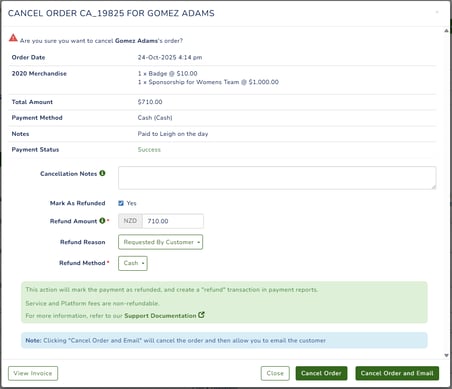
The pop-up screen will show you the following fields:
Online Payment
Cash or Manual Payments
-
Cancellation Notes – Add any notes related to the cancellation.
-
Mark As Refunded –
-
If marked Yes, the transaction will be recorded as refunded in the system and will appear in the Refunded filter when searching.
-
If unmarked, the transaction will be recorded as cancelled only.
-
-
Refund Amount – By default, the refund amount is the full price of the transaction. Change the amount if necessary.
-
Refund Reason – Select the reason for the refund from the dropdown. If “Other” is selected, you have the option to enter custom text.
-
Refund Method – Choose the method to issue the refund. For more details, please see the messages on your pop-up screen.
- Cancel Order - This will complete the cancellation of the transaction. The member will receive an automated email confirming the cancellation, including the updated invoice for the cancelled or refunded amount.
-
Cancel order and email - This will complete the cancellation of the transaction. You also have the option to compose an email directly to the member.
The Online Store Module does not support automatic refunds. All refunds must be issued manually or outside the system.
Online Course Payments Report
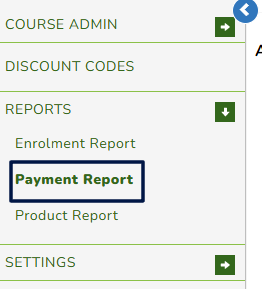
To access the Online Course Payments Report, navigate to Module > Online Course, then select Reports > Payment Reports from the left-hand navigation.
The Payments Report displays all transactions processed within the Membership Module.
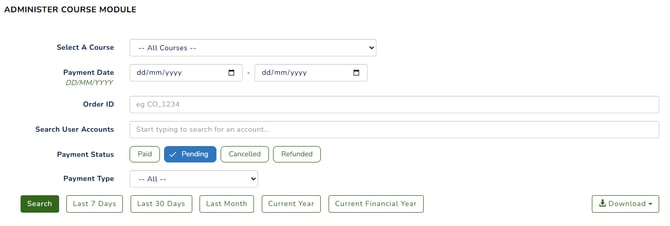
To export the report, download the data using the Download option from the dropdown menu.

Confirming, Cancelling, and Refunding Membership Payments
Confirm Payments
Confirming payments is only applicable for manual payments, such as cash, direct deposit, or cheque. This excludes online payments, as they are automatically approved by the system.
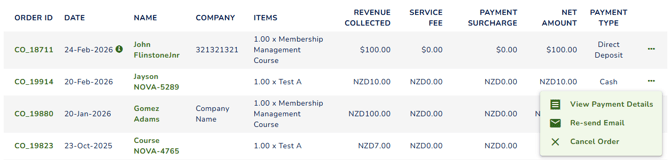
To confirm a payment in the Payments Report, click the three dots next to the transaction or click the red amount on the dashboard to view the payment details.
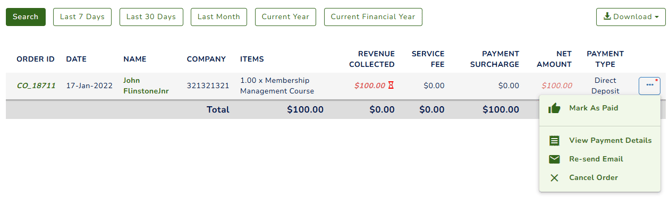
The payment details allow you to change the Payment Date if you received the payment on a different date for manual payments and to leave a note against the transaction. You also have the option to view the invoice if needed.
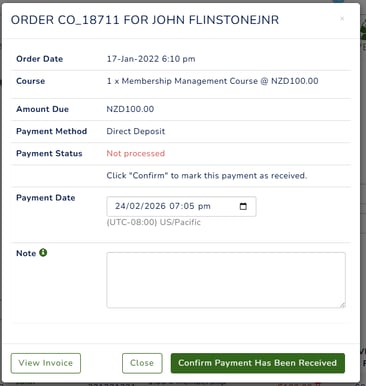
Click the Confirm Payment Has Been Received button to confirm the payment. Any note will appear under the Notes tab of the member’s account, and a tooltip will display on the payment date if it differs from the order date.
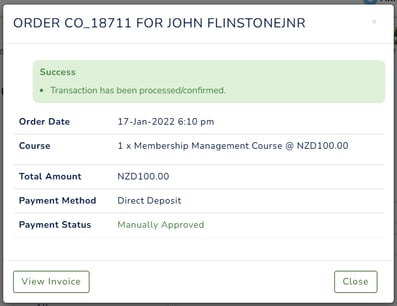
Once payment has been confirmed, the enrollee should now be able to access the course.
Cancel and Refund Payments
To cancel a payment, click the three dots next to the transaction. Click 'cancel order'
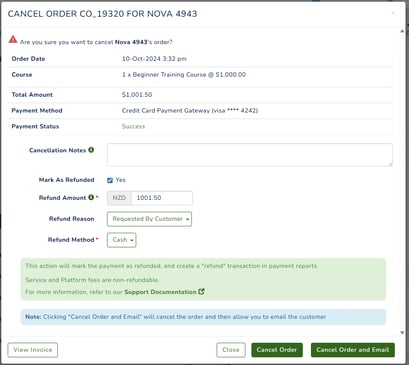
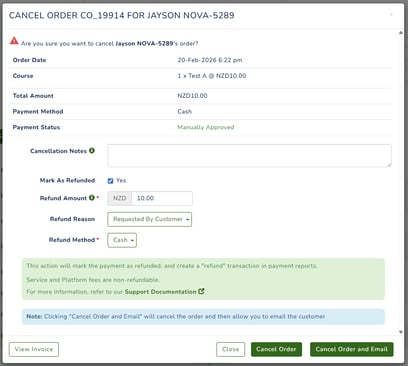
The pop-up screen will show you the following fields:
Online Payment
Cash or Manual Payments
-
Cancellation Notes – Add any notes related to the cancellation.
-
Mark As Refunded –
-
If marked Yes, the transaction will be recorded as refunded in the system and will appear in the Refunded filter when searching.
-
If unmarked, the transaction will be recorded as cancelled only.
-
-
Refund Amount – By default, the refund amount is the full price of the transaction. Change the amount if necessary.
-
Refund Reason – Select the reason for the refund from the dropdown. If “Other” is selected, you have the option to enter custom text.
-
Refund Method – Choose the method to issue the refund. For more details, please see the messages on your pop-up screen.
- Cancel Order - This will complete the cancellation of the transaction. The member will receive an automated email confirming the cancellation, including the updated invoice for the cancelled or refunded amount.
-
Cancel order and email - This will complete the cancellation of the transaction. You also have the option to compose an email directly to the member.
The Online Course Module does not support automatic refunds. All refunds must be issued manually or outside the system.