How To Get There
To approve or reject a pending member, you must be logged in as a membership or site administrator.
Select the Membership module in the top navigation 
What Causes A Pending Membership?
The main reasons that a member will be sitting in a pending status are:
- If you have chosen to have manual approval required. (See Membership Level Setup)
- If you have a manual payment option turned on e.g. direct transfer, that needs manual reconciliation. (See Payment Settings)
- If they have attempted to pay via an online payment gateway and it has failed for whatever reason. To see their status for these cases, click on the Notes icon next to the member's name and read their recent activity.
Identifying the Types of Pending Memberships
There are two types of pending memberships, depending on what has caused the member to go into a pending status. These are identified by different icons next to the pending membership:
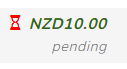 Hourglass – Indicates pending payment, which requires confirmation.
 Pending Approval – Indicates the signup or renewal is pending approval.
It is possible for a member to be both pending payment and pending approval. The hourglass icon will appear next to these members, and once the payment is approved, the pending approval icon will then appear so that a membership can be approved.
How to Approve or Reject a Membership
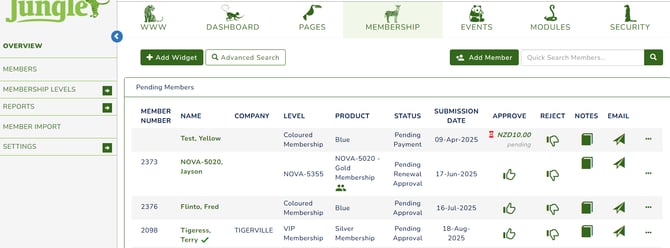
To approve a member, click on “Membership” in the top navigation bar. The page displays a Pending Members widget, which by default shows the pending members list at the top.
-
Member Number – This refers to the membership number. If this column is empty, it means the member is signing up for the first time. If it has a number, it indicates the member is existing and the transaction is for renewal, or an application for a new membership level.
-
Name – The name of the account holder who is signing up or renewing.
-
Company – The company the member is associated with.
-
Level – The membership level the member is signing up for or renewing.
-
Product – The membership product associated with the member.
-
Status – This indicates either “Pending Payment” or “Pending Approval.” Once payment is approved, the status will change to “Pending Approval.”
-
Submission Date – The date when the transaction occurred.
-
Approve – This column shows two icons:
-
Hourglass – Indicates pending payment, which requires confirmation.
-
Pending Approval – Indicates the signup or renewal is pending approval.
-
 Reject – Use this to reject a signup or renewal. Please note that this does not reject a pending payment. This only rejects the 'pending membership'. To cancel a payment, go to the Payments Report.
 Notes – View or add notes associated with the account.
 Email – Used to email a member directly. Clicking this icon opens a pop-up email editor for the admin to create and send an email.
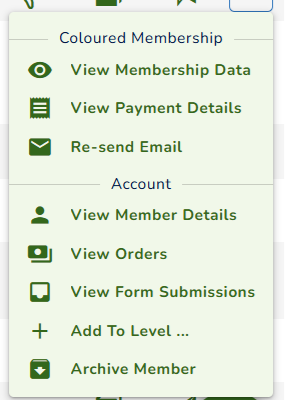
- The
 gives more options for the member.
To approve a member, simply click the green “Approve” button. Please allow a few seconds for the system to process the required information in the background. Once completed, the status will change to Approved, and the member will be moved to the Current Members list.
Please note that the Members page does not have a dedicated Approve column. Instead, click the action icon next to the member’s name to view a list of options.
-
If the member has already paid, a red asterisk (*) will appear beside the icon. When clicked, the first option will be “Approve Member.”
-
If the member has a pending payment, the first option will be “Add Payment.” After entering the payment details, you will then be able to approve the member.
Confirming Member Payment and Payment Method
Before approving a pending member, you should first confirm the payment has been made. You can see that a payment is pending approval on the Pending Members Widget that is displayed on the Membership Overview page. The widget automatically displays at the top of this page when you have a Pending Membership that is awaiting approval.

To review payment details, click the pending hourglass icon under the Approve column, or click the three dots next to the account and select “View Payment Details.”
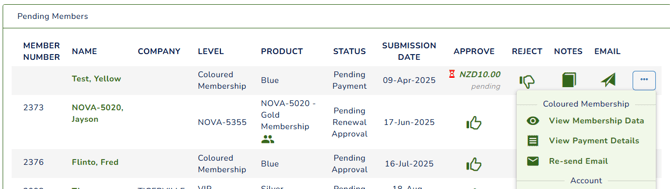
The payment details allow you to change the Payment Date if you received the payment on a different date and to leave a note against the transaction. You also have the option to view the invoice if needed.
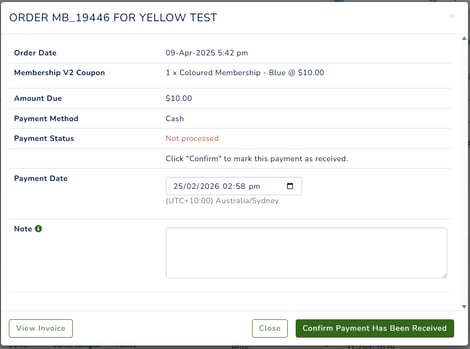
Click the Confirm Payment Has Been Received button to confirm the payment. Any note will appear under the Notes tab of the member’s account, and a tooltip will display on the payment date if it differs from the order date.
Confirming payments is only applicable to manual payments, such as cash and direct deposit.
If the member paid via an online payment method, the system will automatically accept the payment once it is successful.
The Pending Dashboard is used for approving or rejecting membership requests, as well as confirming manual payments.
How To Approve a Member in the Mobile App
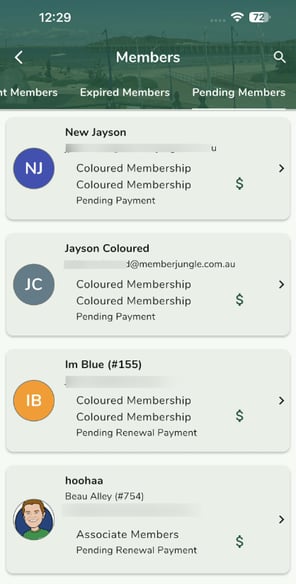
As an administrator, you can approve a pending member within the mobile app. To do this, log in to the Mobile App as an administrator and tap the Pending Members icon to view the list of pending members.
If there are members with a pending status, they will appear in this list. To approve a member, tap the thumbs up icon or the dollar icon, depending on the member’s status.