The course module is an add-on module available to our Member Jungle clients. If you would like to discuss adding this module to your site, please raise a support ticket
In this article:
- How To Add A Course
- How To Edit The Course Form
- How To Add A Course Chapter
- How To Add Course Questions Or Exams
- How To Add Additional Course Products
- How To Create Course Discount Codes
- How To Issue A Course Certificate
- How To View And Manage Student Enrolments
- How To Add A Student
- How To Generate Reports
- How To Access Online Courses From A Student’s Perspective
How To Add A Course
1. The first step to adding is a course, is firstly creating a role for your students in the security module. You do not need to give any permissions to this role. Please see roles & permissions article for instructions.
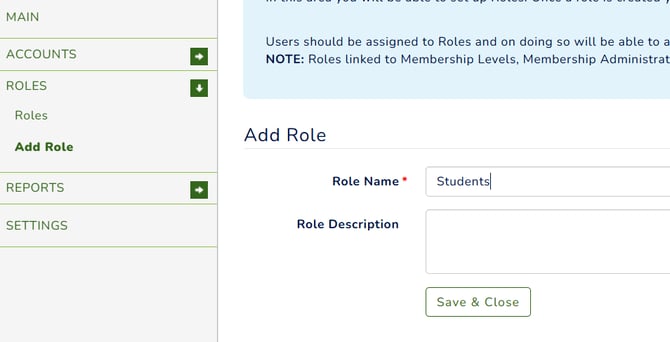
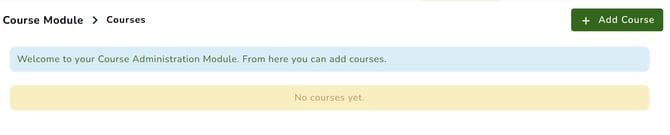
2. To create a course, you need to be logged in as administrator with the relevant role. Select the Course Module or Online Course from your list of modules.
-
Click Add Course, then fill in the course details.
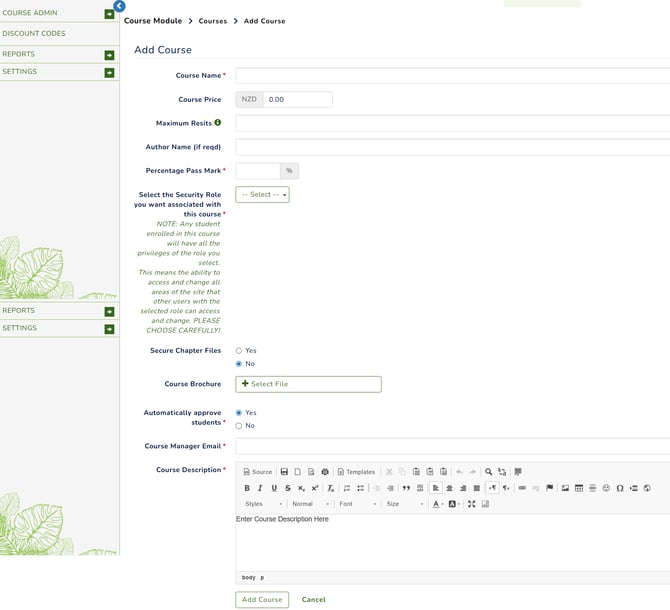
- Course Name: Give your course a name
- Course Price: The cost your students need to pay to join the course.
Note: If you have different pricing options for the course it is best to leave this as 0 and add the pricing options into your "additional products". - Maximum Resits: The number of times a user can resit a course before requiring payment. Leave this empty if you do not wish to allow students to reset their own results.
- Author Name: The name of the course author.
- Percentage Pass Mark: The % result that is considered a pass mark in this course.
- Select the Security Role you want associated with this course: Select the role from the drop down menu, that you set up from step 1. When someone signs up to this course, they will be given this role and any privileges associated with the role.
- Secure Chapter Files: Select whether you would like the files in your chapter secured to students only, or available to the public to view.
- Course Brochure: Upload a brochure for your course.
- Automatically Approve Students: Select whether the students will automatically gain access to the course upon payment, or if they will need to be approved by an administrator.
- Course Manager Email: Include an email for all correspondence for this course. This email address will be notified when the student sign up and complete courses.
- Course Description: Add a full description of the course.
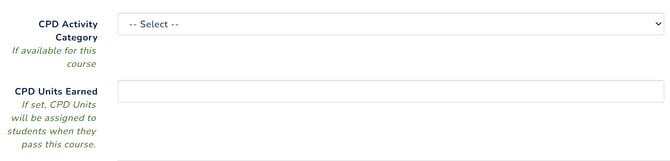
If you are using the CPD module, two additional fields will appear on your screen to automatically generate a certificate.
- CPD Activity Category – A drop-down menu displaying all CPD categories created under the CPD module.
- CPD Units Earned – Specify the number of CPD units earned upon course completion.
sample image of the member account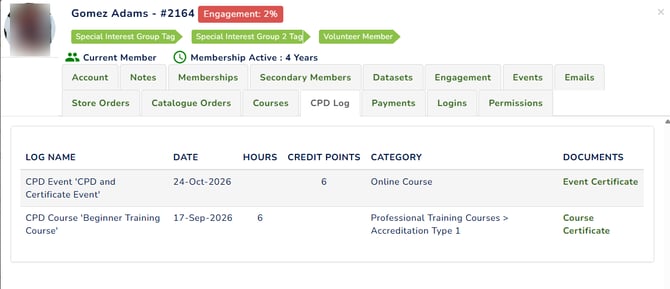
3. Once you have completed the fields, select "Add Course".
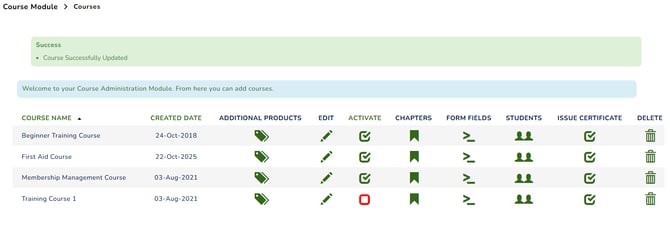
Your course will now display in the list of Courses.
How To Edit The Course Form
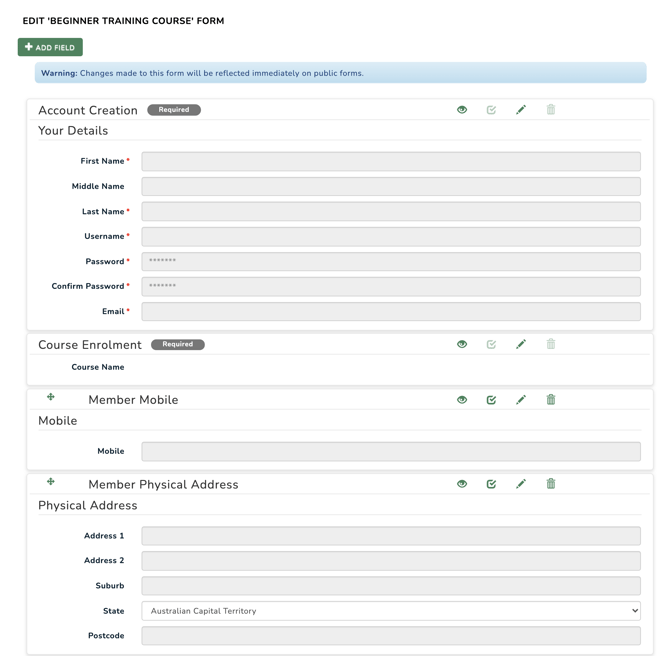
You can custom build the course signup form to collect all required information by clicking on the "Form Fields" icon. Using our standard form builder (as used in Membership, Events and PowerData Form Module), you can "Add Fields", make them as required and drag and drop them around to suit.
How To Add A Course Chapter
Once you have added your course, you will need to add the course chapters. To do this, select the Chapters icon  next to the course name.
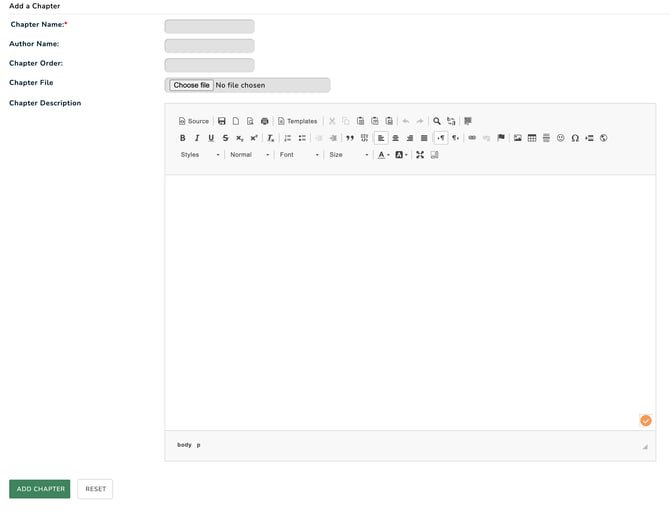
Complete the form for each chapter of your course
-
Chapter Name: Give your chapter a name
-
Author Name: The name of the author of this chapter
-
Chapter Order: The order in which this chapter will be available to your students
-
Chapter File: If you wish to upload a file that is relevant to your chapter (eg - a printable copy of the chapter description or a relevant reading material), you can do so here
-
Chapter Description: The full details of your chapter. This generally includes the chapters reading material for your students.
Once completed, select Add Chapter.
Repeat this step until all of your Course Chapters are added.
Chapters will then need to be activated once completed.
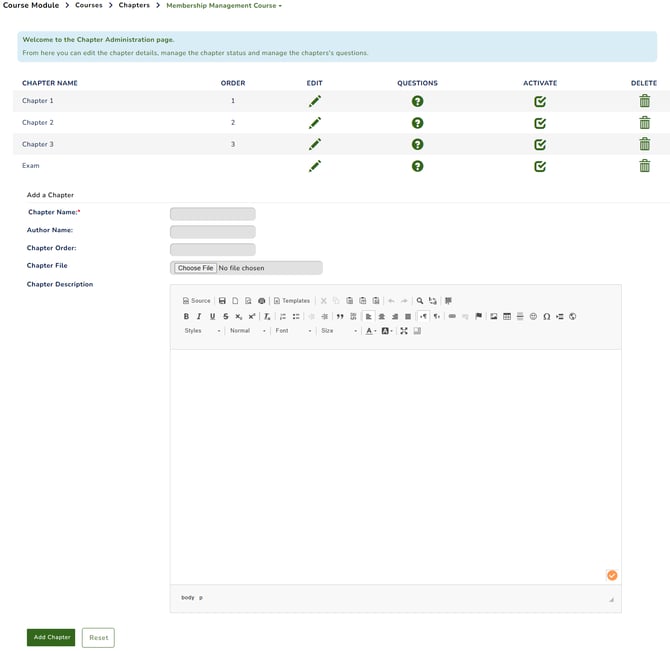
You can navigate between courses using the drop-down menu at the top of the screen.

How To Add Course Questions Or Exams
Where you have a Chapter that requires the students to complete a quiz, you can add the questions to the relevant Chapter by selecting the  icon for that Chapter.
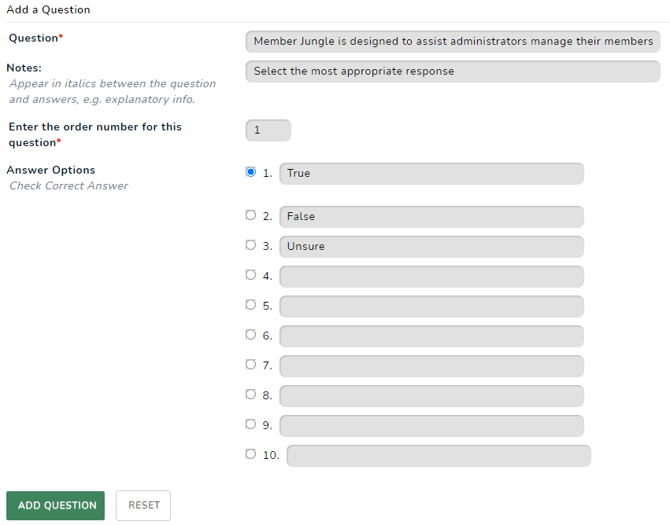
Questions are multiple choice.
-
Question: Type the quiz question for your students to answer
-
Notes: If you have further information, instructions or notes for the student to display with this question, you can add this into this field. It will be displayed in italics under the question.
-
Enter the Order Number for this Question: This will dictate what order this question is asked to your students.
-
Answer Options: Add up to 10 options for the multiple choice answer. Click the circle beside the correct answer to highlight that answer in blue.
Once you have completed this, select Add Question.
Repeat this step for all quiz/exam questions for this Chapter.
You also have the option to allow students to view their assessment, including the questions and correct answers, once it has been marked. This setting is not enabled by default. If you need further assistance, please feel free to submit a ticket.
A course cannot be marked as completed or issue a certificate without questions. You can add simple confirmation questions to meet this requirement.
How To Add Additional Course Products
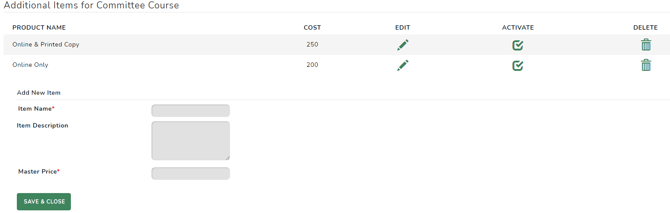
You have the option to add additional course products for the students at sign up. This can also be used as the pricing of the course if you offer multiple pricing options.
Select the Additional Products  icon beside your chosen course.
These options will be available to students at sign up for this course.
How To Create Course Discount Codes
It is possible to add a discount code to for your students apply to your course at sign up.
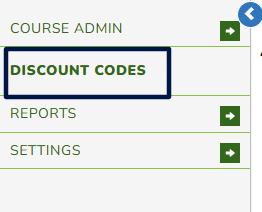
To do this, select Discounts from the left navigation, and select Add A Discount.
Complete the form to create your discount code.
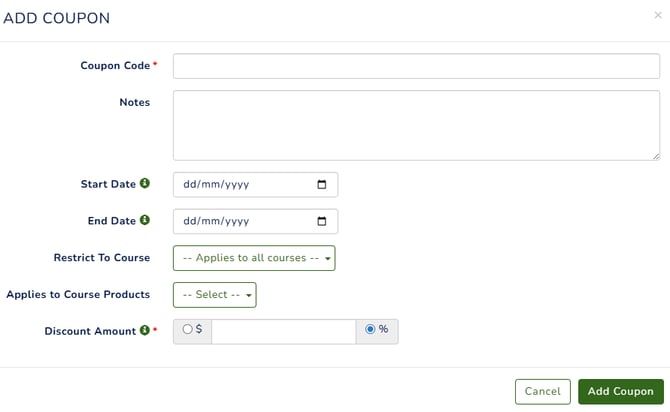
- Coupon Code – The name or identifier for the discount.
- Notes – Additional details or remarks about the discount code, if needed.
- Start Date – The date when the discount code becomes active. If left empty, the discount coupon will be usable immediately after it is activated.
- Expiry Date: The date the discount code will no longer work. If left empty, the coupon will remain usable indefinitely until an expiry date is set or it is manually deactivated.
- Restrict to Course: Select which course this discount will apply to. You can select all courses or a single course.
- Applies to Course Products: Select if you would like the discount to be applied to the additional course products.
- Discount Amount: Check either the $ or % and enter the amount in dollars or percentage discount that will apply.
Once completed, ensure you select Save & Close. You will then see the discount listed as inactive. Activate your discount code for this to work according to your settings.
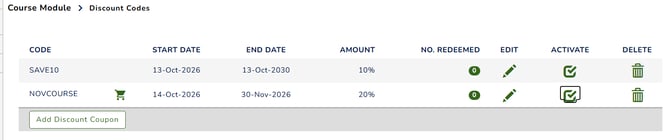
A cart icon beside a discount name indicates it applies to both courses and online store add-ons. Without the icon, it applies to courses only. If restricted to a specific course, the course name appears beside the code.
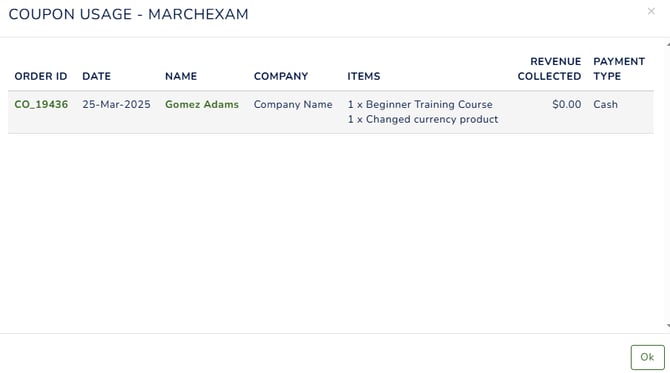
Click the number icon in the Redeemed column to view how many times a discount code has been used
Below are the other icons you may see and their corresponding functions:
-
 Editing a Coupon Code – You can update an existing coupon, such as extending its end date or modifying other details.
 -
 Inactive Status of a Coupon – Indicates that the discount code is currently disabled and cannot be used.
 -
 Active Status of a Coupon – Indicates that the discount code is enabled and available for use.
 -
 Deleting a Discount Coupon – Permanently removes the coupon from the system. This action cannot be undone.
How To Issue A Course Certificate
Once you have created your course and included a price or additional product, you can activate and edit the certificate of completion issued to your students automatically. To activate the certificate, tick the Issue Certificate box next to the relevant course.
Course certificates are custom-configured to suit your organisation’s requirements and branding and can include dynamic course content. If your certificate uses subtitle and footer fields, these are stored against each course. To edit the certificate content, select the Edit icon next to the course name.
Below the details of the course you will see two new fields:- Certificate Subtitle: Will be displayed under the main heading
- Certificate Footer: Will be displayed under the main body of the certificate
Once you have added these details (optional) scroll to the bottom and select Save & Close to save your changes. You can view and regenerate a course certificate in the Students admin area.

How To View And Manage Student Enrolments
You can view the students who have enrolled. To do this, click on the student icon located next to the relevant course.
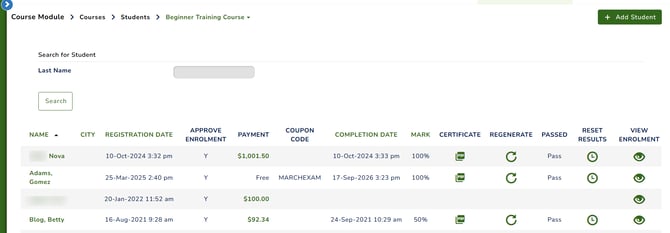
As shown above, the list of enrolled students will appear in a list. From here you can:
- access the student profile by clicking on their name - see User Profile Pop-up
- see registration and enrolment dates.
- approve pending course payments.
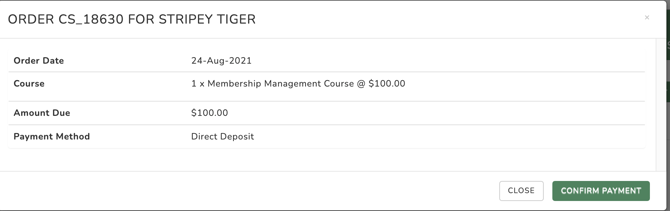
If you have manual payments publicly available, when a student enrols and selects a manual payment method, you will see their enrolment in the list as "Pending" as shown below.

Once payment is received, click on the pending payment to view the payment method. Click Confirm Payment to mark it as paid. The student will receive an email confirmation and access to the course.
- view coupon codes used.
- download course certificates.
- reset students results so they can resit the exam questions.
- view the student enrolment (as shown below).
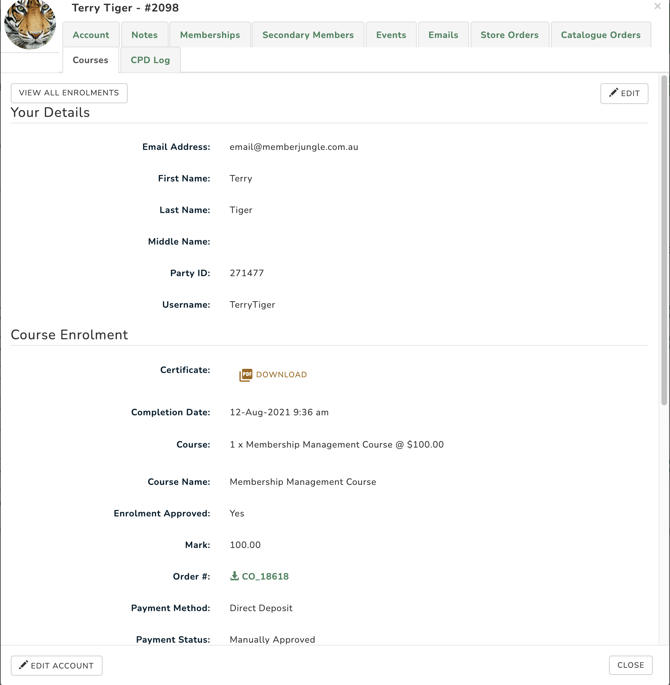
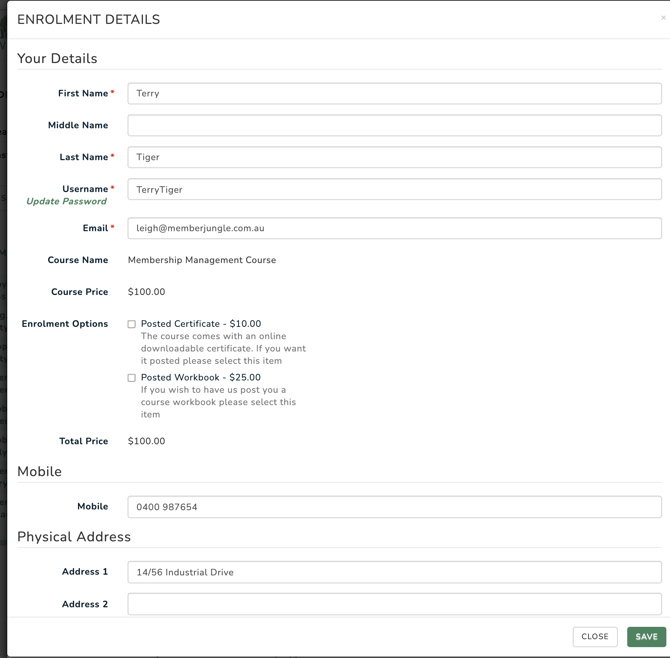
- edit the student's enrolment form (by clicking on the edit in the top right) of the enrolment screen.
How To Add A Student
An administrator can manually add a student by clicking on the Students icon beside the course they wish to enrol the person in, and then clicking the "Add Student" button in the top right hand side of the page.
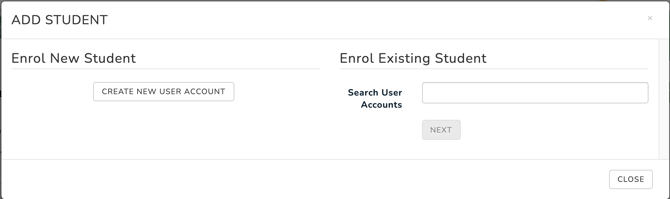
You will be given the option of Enrolling a new student or Enrolling an Existing Student, who already has a user account on the site.
-
Enrol New Student
To enrol a new student, click Create New User Account and complete the student's details, including a username and password, along with the course enrolment form. Select the courses and click Save.
-
Enrol Existing Student
If the user already has an account, start typing their name and select it from the drop-down. Click Next, complete the remaining enrolment fields, and click Save.
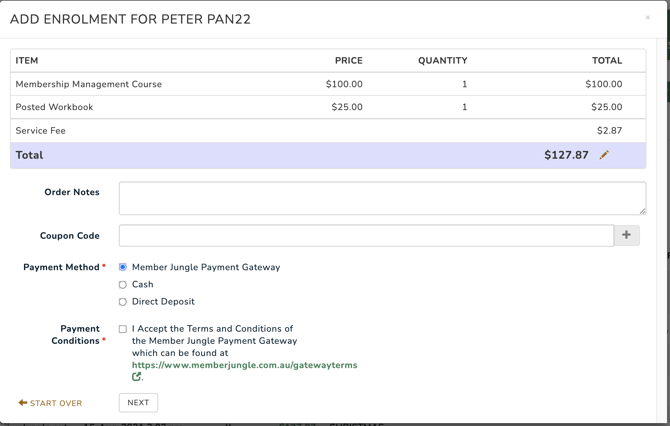
You will then be taken to the payment screen. Selecting a manual payment method as an admin will automatically mark the payment as received.
How To Generate Reports
-
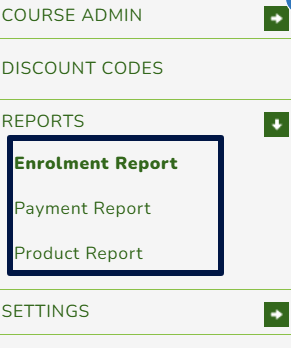
Enrolment Report
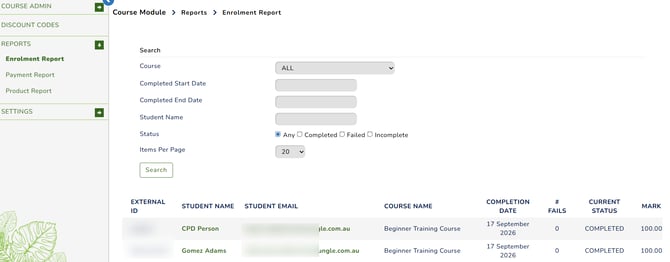
This report displays all students who have enrolled in, completed, or failed a course. Filter results by course, completion date, student name, or result status. You can also search for specific students and export the results to CSV using the Export button at the bottom of the report. All course enrolments appear regardless of status.
-
Product Report
This report displays students who have purchased online course access or additional products. Filter results by course or additional product, and export them to CSV using the Export button at the bottom of the report.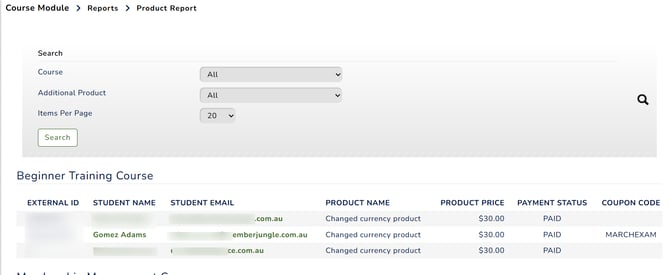
-
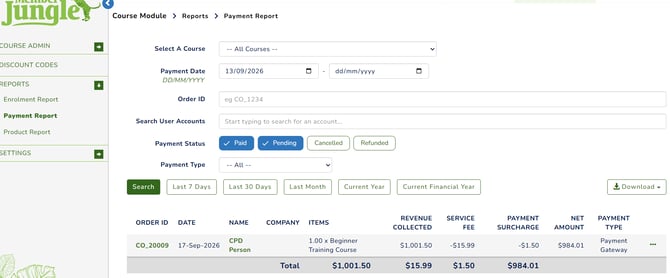
Payments Report
This report displays all paid transactions in the Online Course module, including the student, course purchased, payment date, and payment method.
Please see more details here: Online Course Payments Report