
- What is General Page Management
- How to Add a Page
- How To Add Widgets To A Page
- How To Use Content Blocks For More Advanced Page Design
- How To Reorder Pages On Your Website
- How To Use The Content Editor In Widgets And Pages
- How To Edit Slideshows On Your Website
- How To Use The Document Manager
- How To Add Links And Buttons To Your Pages
- How To Build Your Website Homepage
What is General Page Management
Page Management lets you add, edit, reorder, and customise your website pages. To access it, log in to the Admin area and click Pages in the top menu to view and manage all your website pages.
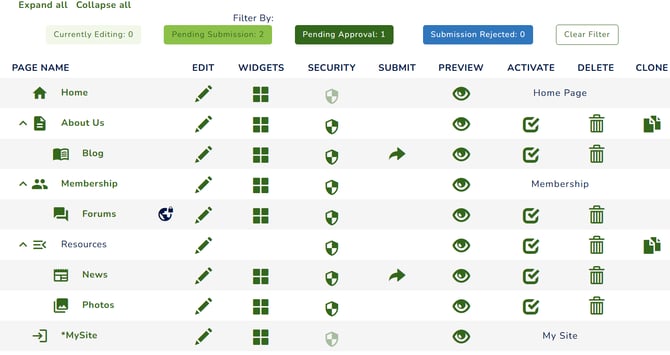
Page Management Tools
- Page Name: This column lists all of the pages on your website. The page names are clickable links, which take you to a preview of each page.
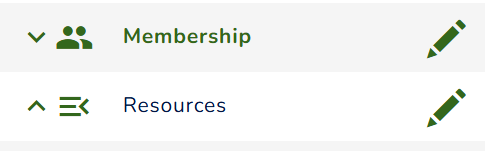
 This icon means that the parent page's subpages are displayed on your screen (e.g., the Membership page).
-
 This icon indicates that a page has subpages that are currently hidden (e.g., the Membership page).
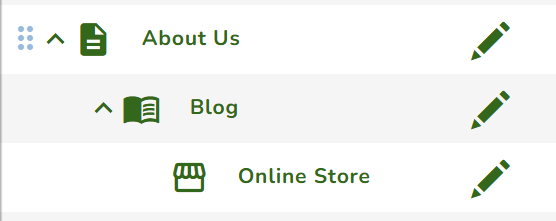
 This icon allows you to re-arrange the pages by dragging any pages going up or down.
-
 Edit: This icon means you can edit page content and customise SEO settings.
 Lock: This icon means the page is being edited or has unsaved changes.
 Widgets: This icon means you can add widgets to your page. See Page Widgets for more information.
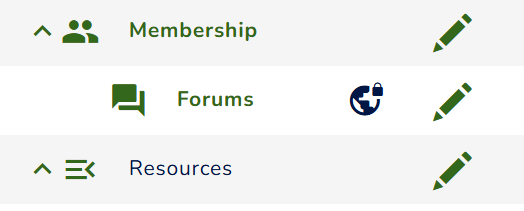
 Security: This icon means you can set user permissions. Once configured, the icon below will appear beside the page name.
 Restricted: This icon means the page is private and only accessible to authorised users.
- Activate: This icon means you can activate
 or deactivate
 a page on your website.
 Delete: This icon means you can permanently delete a page.
 Clone: This icon means you can duplicate a page, including its documents, widgets, and user roles.
These two icons may not appear, depending on the page approval settings configured in Content Management.
-
 Submit: This icon means you can submit your page for approval.
 Preview: This icon means you can preview unpublished page changes.