
To get started, navigate to Pages in the top navigation.

-
 This icon allows you to move pages. Please feel free to hover your mouse to the page you wanted to move.
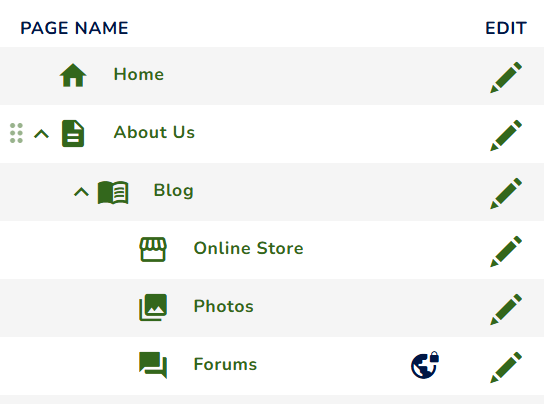
In the image above, the pages are organised by levels:
- Level 0: About Us
- Level 1: Blog Page
- Level 2: Online Store, Photos, and Forums
To reorder pages, simply drag and drop them:
- Change the order: Move a page up or down to rearrange its position in the list.
- Change the level: Move a page left or right to change its hierarchy, such as making it a subpage or a main page.
Please note that you cannot move a child page up a level if it has sibling pages positioned after it. In the example above, this applies to the Online Store and Photos pages. Move these pages to the bottom of their current level before changing their level.
All changes are applied immediately to your website's front end.