In this section
- How to Manage Events via App
- How to View Event Registrations
- How to View the Event Attendee Report
- How to View All Event Attendee Ticketing Information
- How to Mark Attendance via the List
- How to Scan a Member Barcode to Mark Event Attendance
- How to Use Member Blast for Event List Communication
- How to Give Other Users Access to Track Event Registrations
-
How Can Members Contact the Membership Officer & Site Administrator
How to Notify Members via App
Complete your entry (using the Events, Blog, News or Resource Library module).

 - active status
 -inactive status
 - Click the Notify App icon next to the item you wish to send a notification about. This will send a notification to all app users.
- Or for more direct communication with members, please see Member Blast below.
How to Manage Members via App
How to Access the Members List
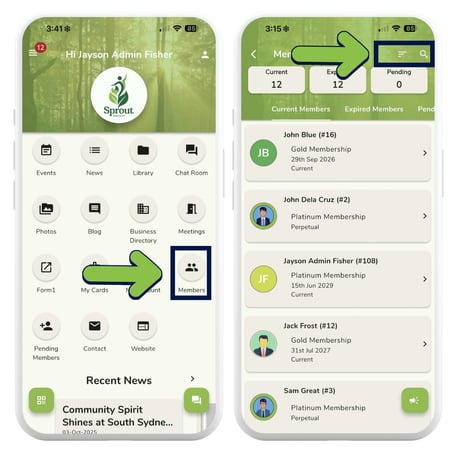
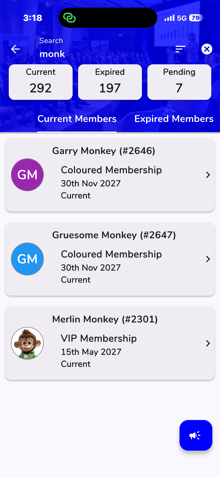
If you’re logged into the Member Jungle app with the Membership Coordinator role or higher, you’ll see a Members icon. View member counts for Current, Pending, and Expired Members, filter by headings, search for members, and adjust sorting using the three-line menu.
.png?width=235&height=450&name=REGISTERED%20Ticketed%20event%20(4).png)
View each member’s profile information, click their email address to contact them through the system, and use the form icon next to their membership to view all fields included in their membership form.
-1.png?width=451&height=451&name=REGISTERED%20Ticketed%20event%20(2)-1.png)
.png?width=226&height=452&name=REGISTERED%20Ticketed%20event%20(3).png)
How to Approve a Pending Member
As an administrator, you can approve a pending member without leaving the mobile app. To do this, login to the Mobile App as administrator, and click on the Pending Member icon to see a list of any pending members.
If you have any members with the pending status, you will see them listed.
To approve a member, click on the thumbs up icon. 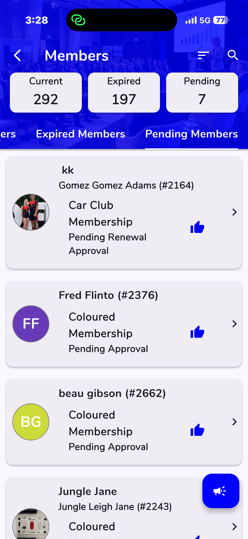
How to Give Admins Access to the Member List
It is also possible to give permission for other users to access member search. You have two options depending on your package.
This is to be used by administrators only, as at this stage there is no "opt out" option for members and all member information is able to be seen..
To add a role for this permission, log in to the website back end, and click the Membership tab in the top navigation. Select Global Settings on the left hand menu, and scroll to "App Search Roles". Select the role name from the drop down list, that you would like to give permission and click on the +.
To delete a role, click on the trash can icon.

How to Control Member Field Visibility
Depending on your package, you can restrict what fields of member information each role or group can see using the App Viewer Permissions.
How to Communicate with Members?
How to Manage Events via App
How to View Event Registrations
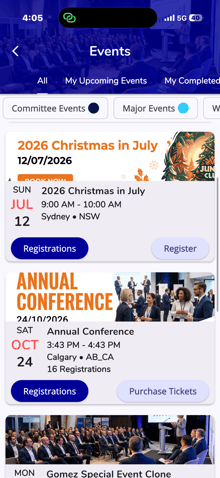
Administrators can see a button on all events that allow Registrations and Ticketing. Note: if registrations are shared (i.e. the setting turned on in the event) then this registrations icon is visible to all attendees. Attendees with no admin functionality are limited to what information can be seen about anyone attending though and only see a list.
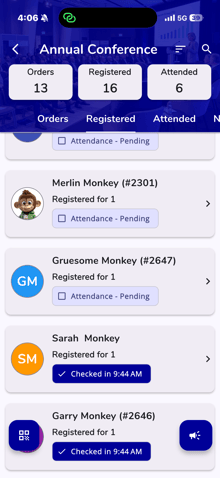
Click on the Registration Icon on the relevant event. You will see a list of all people attending the event.
Orders: The number of individual orders placed (if a person orders on separate occasions it will count as 2)
Registrations: This is the count of individual people registered for an event. If you are using "Account" ticketing fields, each person will show and be counted in the list separately.
Attended: This is the count of people that been marked as attending the event
Not Attended: This is the list of people who have not been marked as attended or partial attendance.
. 
How to View All Event Attendee Ticketing Information
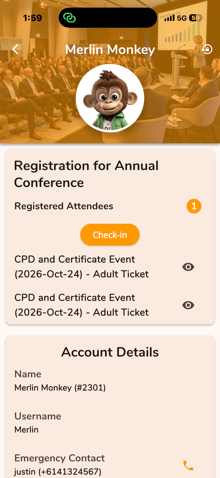
If you wish to see all information about an event attendee including all ticketing fields, click on the event registration or the > to the right
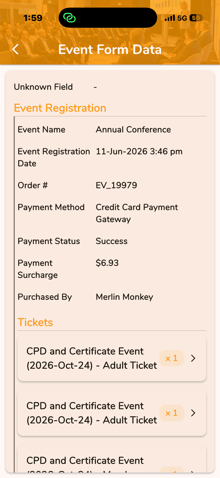
You will all demographic information about the event attendee and their membership information if application. If you click the EYE icon to the right of the ticket information you will be able to see their order information and if you want to see all ticketing fields, click on the relevant arrow next to the ticket.

How to Mark Attendance via the List
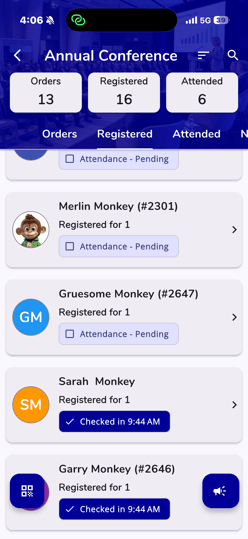
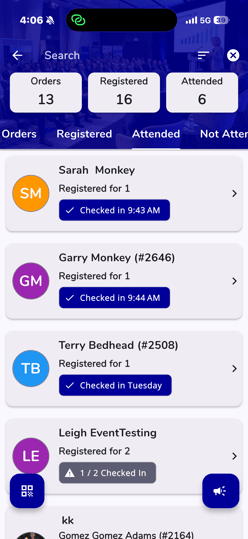
Admins can also mark who has attended the event by clicking the on the "Attendance - Pending" icon. It will mark all registered attendees there.
If the registration is for multiple people and they aren't all there, you can update the number of attendees by clicking the "Checked In" button or the > to the right of the registration.
How to Scan a Member Barcode to Mark Event Attendance
Organisations on our current packages can also scan a members barcode to mark attendance. 
See the article on Scanning A Members Barcode for more information
How to Use Member Blast for Event List Communication
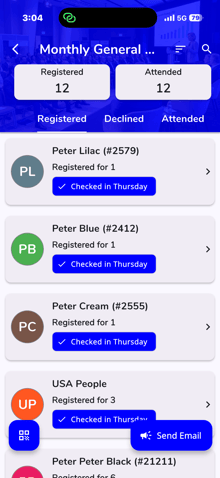
You can easily communicate with event attendees via the app, click on all of the Filtered Lists (i.e. Registered or Not Attended) or search for a member and then click the Send or Announcement Icon located at the bottom right of the screen.
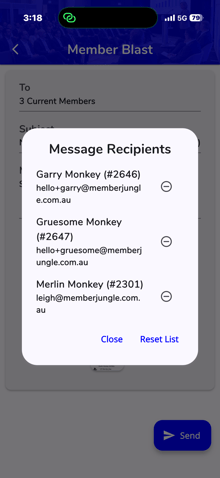
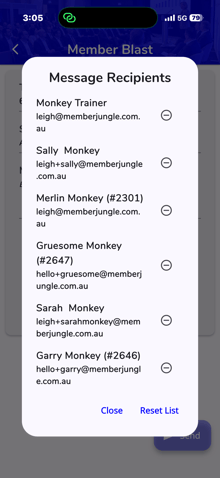
You can then click on the list of Recipients shown the "To" list and delete people individually.
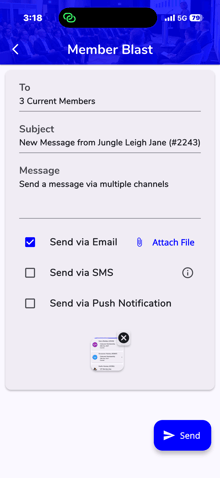
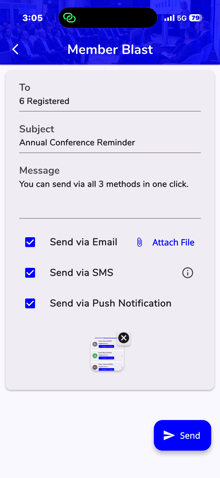
Then you can choose how you want to send the communication, via Email (with the option for an attachment), via SMS (only if we have their mobile number stored) an via Push Notification to all app users.
After clicking Send you will see a count at the bottom of the screen of how many messages of each time have been sent.
. 
How to View the Event Attendee Report
When you have scanned a member into an event, or manually marked the member as attended, they will be shown in the attendee report for that event.
The Attendee Report can to be accessed and reported on via the website Events Module Administration area.

How to Give Other Users Access to Track Event Registrations
It is possible to give other users the ability to see and track event registrations. To do this, you need to be logged in to the website as administrator.
- Click on the Security tab from the top navigation.
- Select Roles from the left side menu
- Create a new role called "Event Coordinator" (or similar) and activate the role.
- Click on the Permissions icon
 next to the role name and scroll down to Module Privileges.
 - Select Events from the drop down menu, and click ADD.

- Return to the list of Roles, and click on the Users icon next to the Events Coordinator role.
- Select the users you wish to have this role from the drop down menu and click SAVE.
How to personalise your app logo & background?
Please see our article on the Member Jungle App Module for how to upload your own app logo and background image and personalise your organisations description and overlay colours.
You can customise what information is displayed on your app dashboard in the Member Jungle App module, select plain pages to display on the app, and event rearrange the layout of your app dashboard. View this article
How to Change the App Logo for the Mobile Home Icon
When you first log in, you’ll see a prompt asking if you want to switch icons. The selected icon will appear as the home icon on your device.
If you belong to multiple clubs using this feature, you may see multiple icon options.
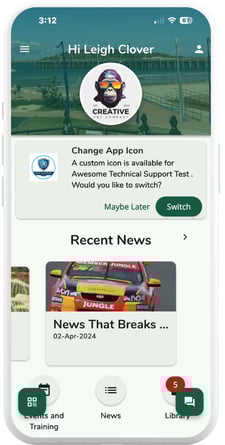
.png?width=225&height=445&name=Mobile%20App%20Resized%20(1).png)
If you don’t see the prompt message, you can navigate to the left navigation, scroll down, and select 'custom app icon'.
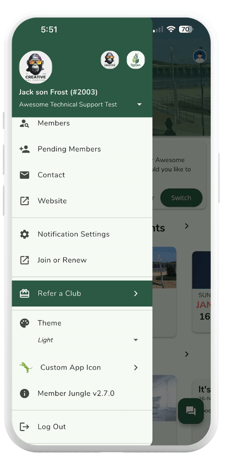
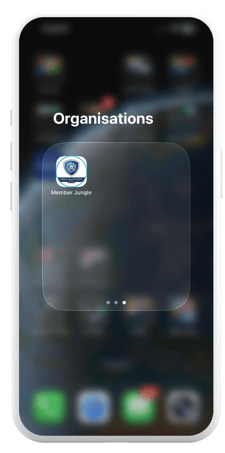
This is what the notifications on the phone will look like when enabled.
-1.jpg?width=229&height=454&name=Mobile%20App%20Images%20(247%20x%20489%20px)-1.jpg)
Please note that the Member Jungle app must be downloaded before changing the app icon. The Member Jungle icon will still appear in the app store. Once enabled, users will need to manually update the icon on their devices.
Changing your icon may take a day or two for notifications to show the updated icon, as some devices heavily cache these.
Please note that this feature is an add-on. For more details, please feel free to submit a support ticket here.
How Can Members Contact the Membership Officer & Site Administrator?
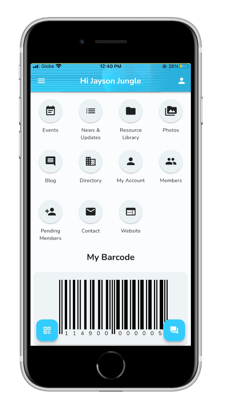
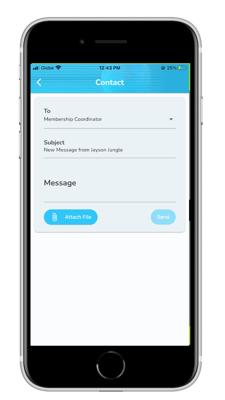
The "Contact" icon allows members to open a window and email the Membership Coordinator directly from the app.
A user can type messages and upload files. The relevant contact is then notified via email.