
From the Site Design area you can manage:
- How to Manage Site, Invoice & Email Logos
- How to Update Social Media Links
- How to Customise the Mobile App
- How to Manage Membership Card Design
- How to Customise Theme Design, Brand Colours & Fonts
- How to Add Custom CSS Styles
As a site administrator, you can update your site's logo for invoices and the mobile app, and apply custom CSS site-wide.
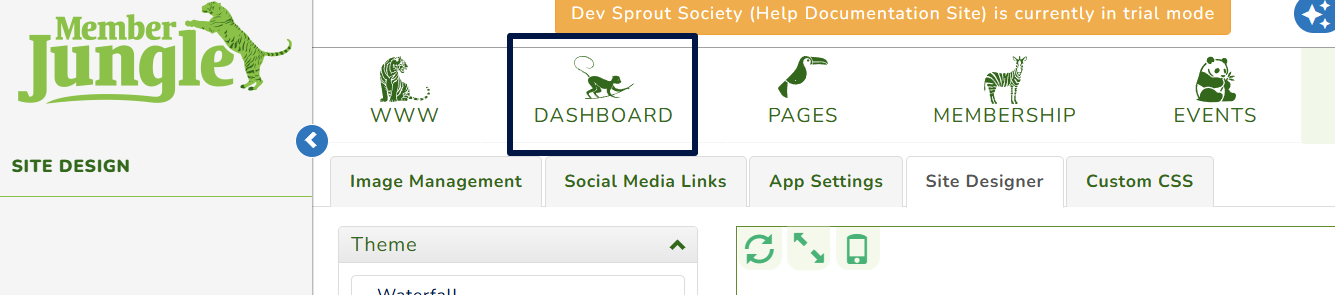
To get started, log in as an administrator, go to Dashboard, and select Site Design from the left-hand menu.
How to Manage Site, Invoice & Email Logos
Image Management
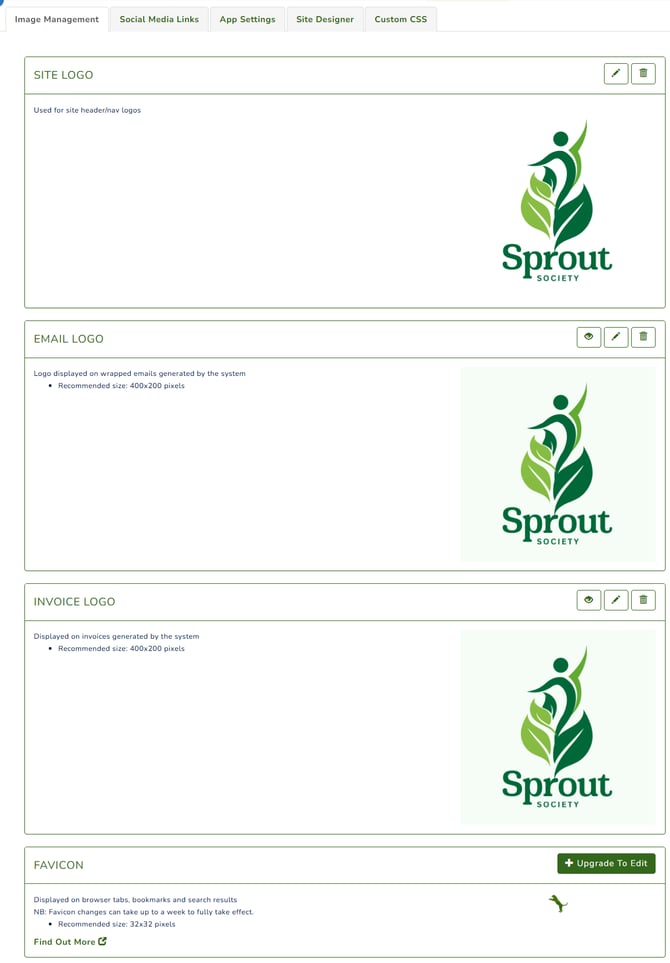
- Site Logo: The logo displayed on your website. Keep the same proportions as your current logo for the best results.
- Email Logo: The logo used in wrapped emails, including membership, events, forms, and email campaigns.
- Invoice Logo: The logo displayed on invoices for membership, store, and event transactions. Smaller logos will be resized to the recommended size.
- Favicon Logo: The small icon displayed in your website browser tab, next to your site's name.
How to Update Social Media Links
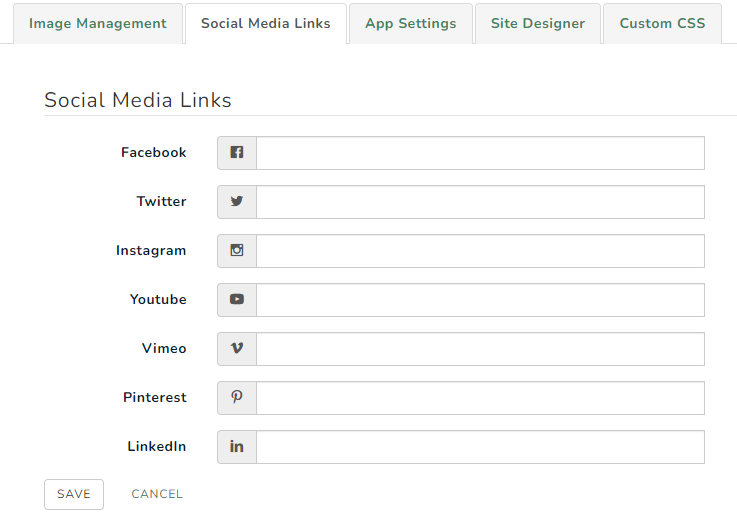
Add your social media account links to the relevant fields.
How to Customise the Mobile App
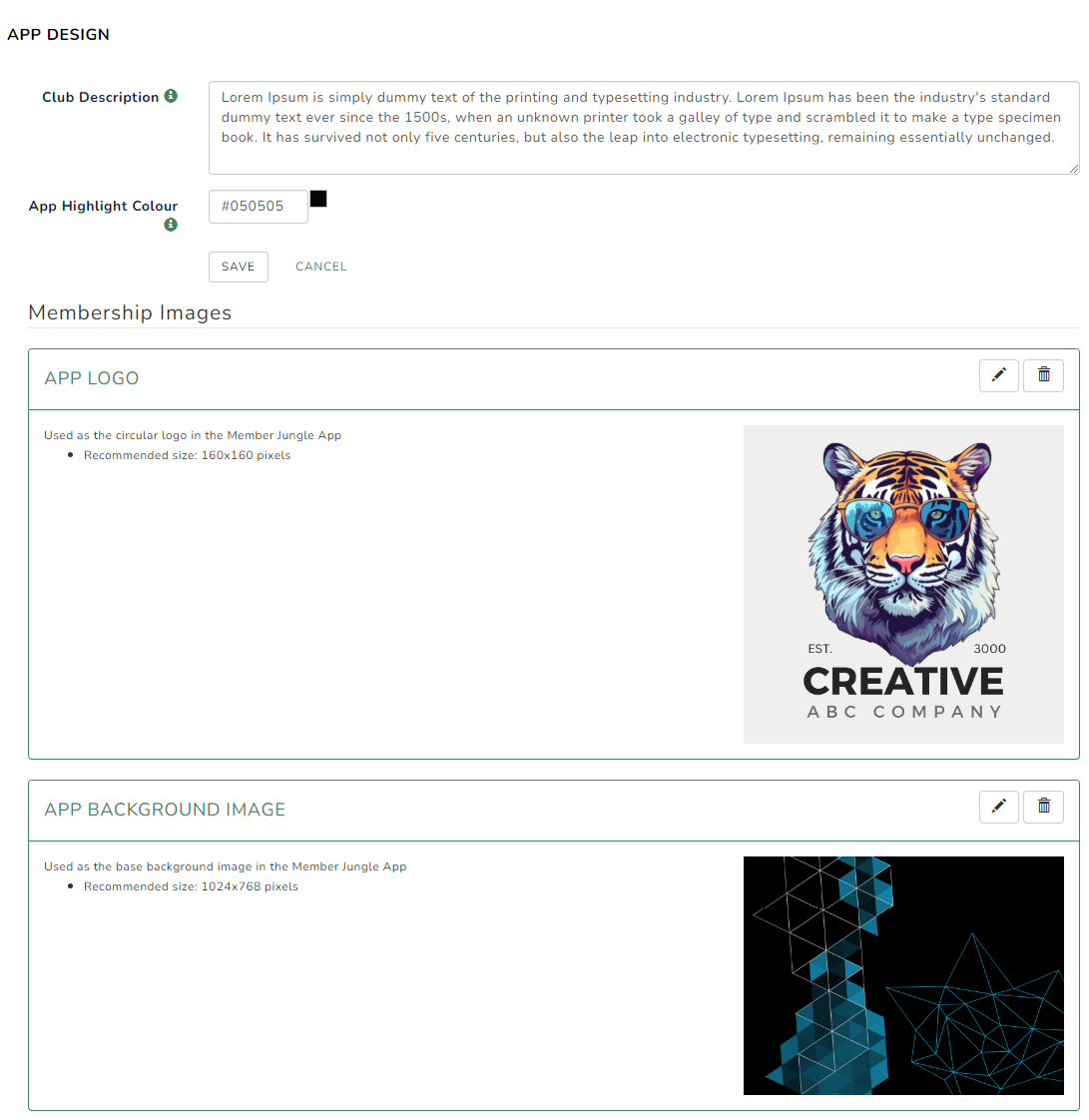
- Club Description: A description of your organisation shown when members find it in the Member Jungle app.
- App Highlight Colour: The overlay colour displayed on your app background image.
- App Logo: The logo displayed in the app’s circular icon. Recommended size: 160 × 160 pixels, with white space around the logo.
- App Background Image: The background displayed across all app pages. Recommended size: 1024 × 768 pixels, with the selected highlight colour as an overlay.
.png?width=251&height=469&name=circle%20businesta%20financial%20logo%20(1).png)
How to Manage Membership Card Design
A digital membership card is automatically generated for each member, displaying their name, membership level, and expiry date. The design uses your app logo and background colour unless you have a custom membership card (Premium plan only).
See example below of a digital member card with the above settings
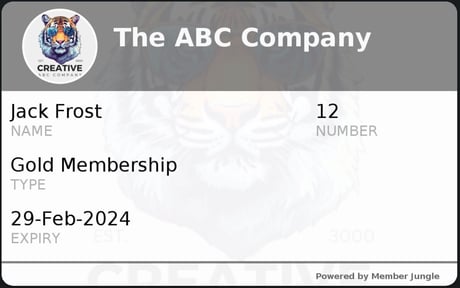
For more information on member cards see Membership Cards
How to Customise Theme Design, Brand Colours & Fonts
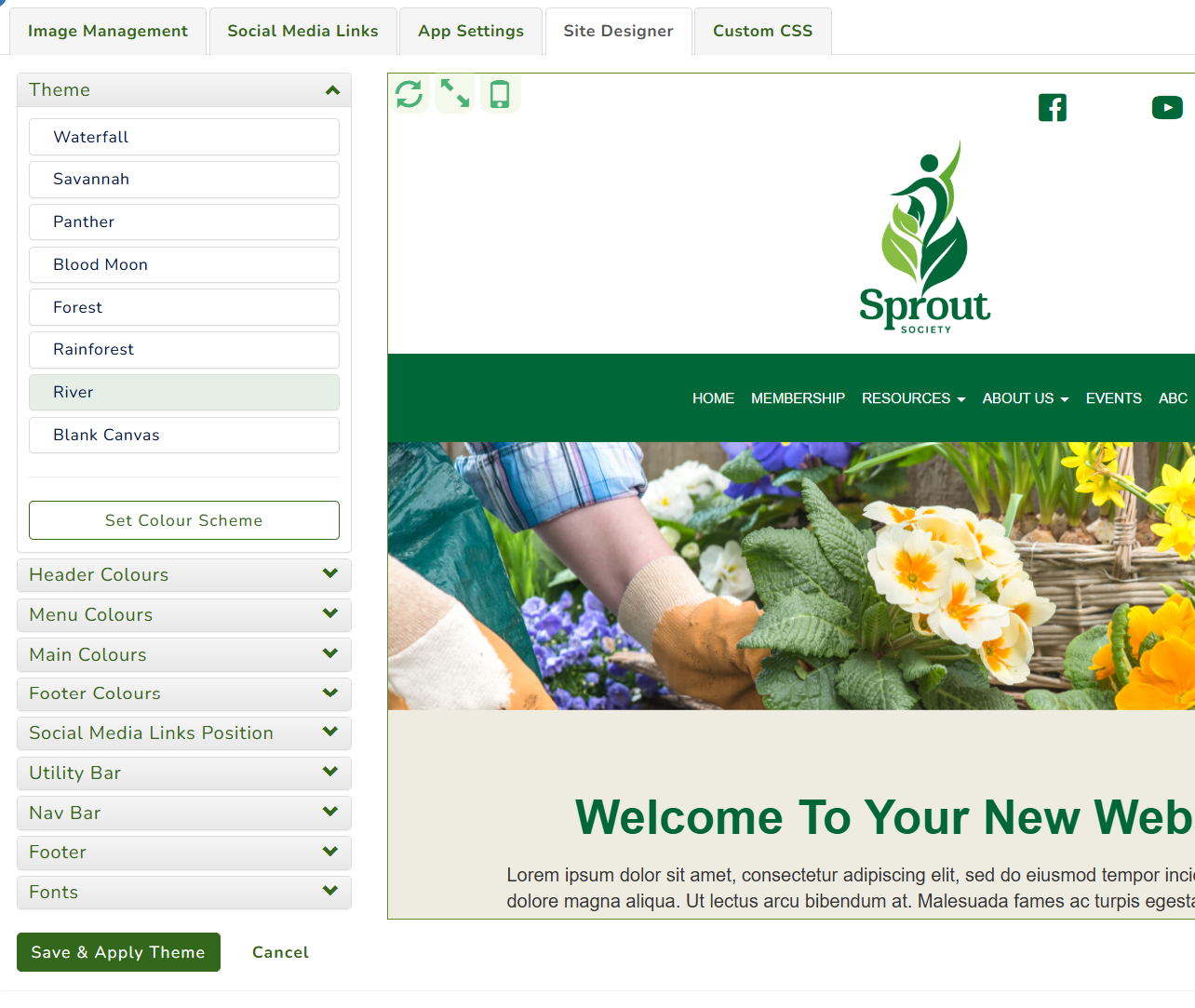
- Theme - you can enhance your website's visual identity with the available design themes.
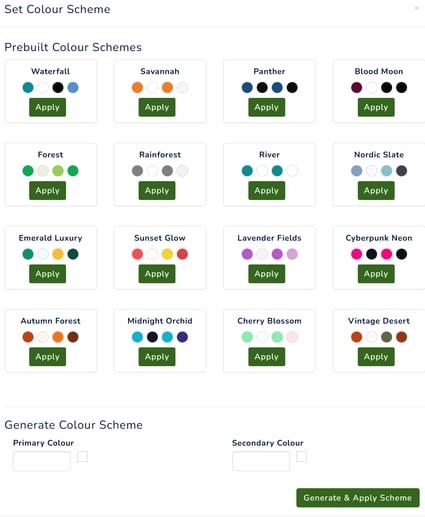
- Set Colour Scheme - You can select a prebuilt colour scheme to apply across your site or enter your brand colours manually without updating the menu and main colours individually.
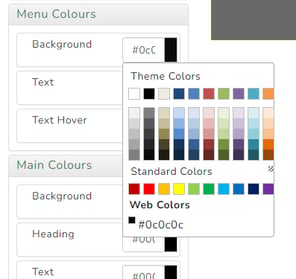
- Header, Menu, Main and Footer Colours - Obtain the 'hex codes' representing your brand colours and input them into the designated fields for accuracy. Alternatively, you can conveniently choose from a selection of available colours by clicking on them.
- Social Media Links Position: Choose whether social media icons appear in the utility bar or footer.
- Utility Bar: Select a store utility bar or standard utility bar.
- Navigation Bar: Choose standard navigation, fixed navigation, or no navigation.
- Footer: Select an advanced footer with a map, standard footer, or slim footer.
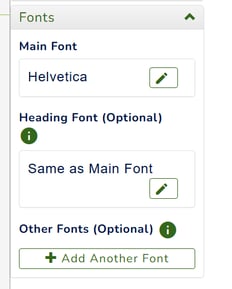
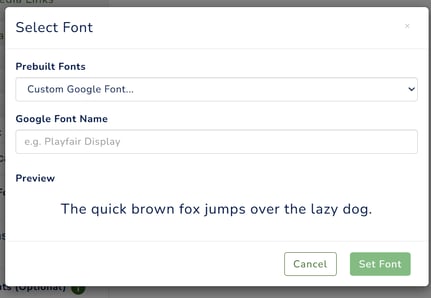
- Fonts: Click the pencil icon to select a font. If your preferred font isn't listed, select Custom Google Font and enter the font name manually.
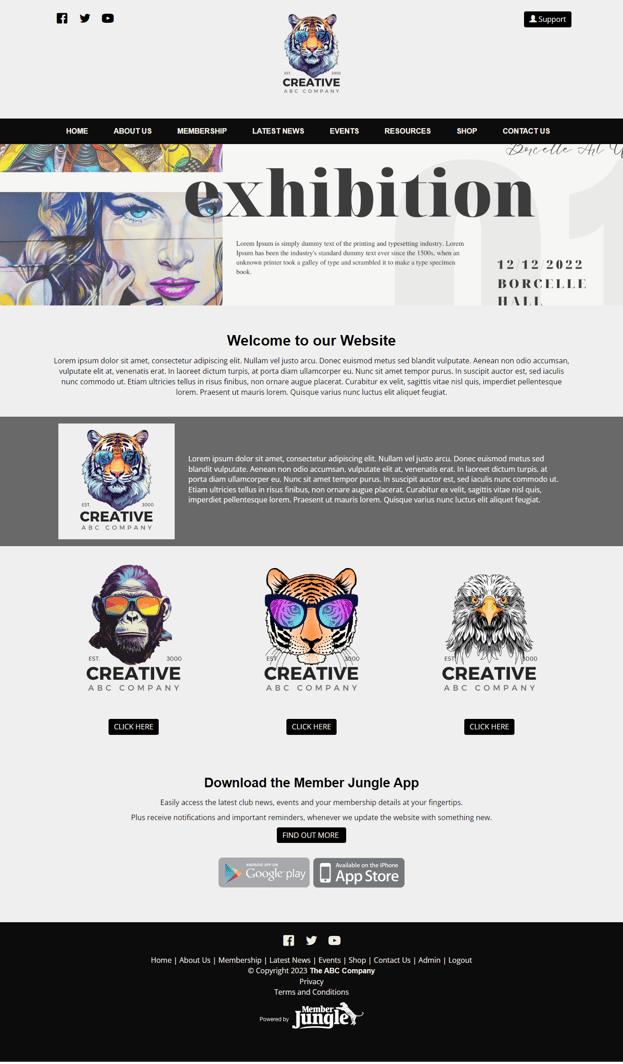
This is an example of how your website may look after applying the settings above. The final appearance will vary depending on your selections.
How to Add Custom CSS Styles
Here you can add style sheet codes for your website. These will override the base styles currently set up on your website.