Not every external system needs an API to know who your members are. If you just want to give your members access to another website, such as a partner's training portal or a members-only discounts page, you can use our External Login Widget instead. You add the widget to a members-only page on your Member Jungle site, and it creates a button. When a logged-in member clicks it, the widget generates a secure URL that carries their member information along with a signing key. The other system reads the URL, uses the signing key to confirm the request really came from your Member Jungle site, and lets them in as a member. The other site will usually need a small amount of development to receive and verify the link, so it's worth talking to their web team first. On your end, though, there's no API to set up or maintain, and no extra door left open into your database.
The link contains a base URL (eg https://www.example.com/login), URL parameters (eg email=fred@example.com, membernumber=12345, firstname=Fred, lastname=Smith), and an optional SHA256 signature to validate the request (eg ssoid=abcd12345).
Each URL parameter can be added individually and can be ordered, in the format paramName=paramValue. the paramValue can contain a fixed value (eg 12345) or a shortcode in the format [[shortcode]] that will be replaced with valid data from the member. Valid fields are:
- firstname
- lastname
- middlename
- username
- membernumber
- externalsystemid
- title
- nickname
- dob
- company
- address1
- address2
- suburb
- state
- country
- postcode
- barcode
- primaryfirstname
- primarylastname
- primarymembernumber
Signing Key will be used to sign the request for validation. This is generated by hashing the key, current date (in the format YYYYMMDD), email address, first name and last name using the SHA256 algorithm. Although additional parameters can be added to the url, these are not added to the SHA256 hash.
ssoid = SHA256(SigningkeyDateEmailFirstLast)
for example (for signing key qwertyuiop)
ssoid = SHA256(qwertyuiop20210917hello@memberjungle.com.auJungleJane)
will result in ssoid=e616cf277e26b6484c42de916981187f566f5c5066a9b346036ab73849321dee, and a full url of https://www.example.com/login/?email=hello@telligence.com.au&first=Jungle&last=Jane&member=345&ssoid=e616cf277e26b6484c42de916981187f566f5c5066a9b346036ab73849321dee
To validate the request, hash the known secret key, the current date (YYYYMMDD) and the email, first and last names from the url parameters, and check it matches the ssoid url parameter.
Adding an External Login Link Widget
The external login link widget is an optional add-on for all packages. If you would like to discuss adding this functionality to your website, please Raise a Support Ticket to discuss your requirements with our team.
Once you have the functionality activated on your website, you can add the widget to your required page by navigation to the PAGES area, and selecting the Widgets icon  next to the required page.
Select the  button in the top left of the Widgets area, and from the popup, select "security" from the side navigation, and click the +Add Widget button next to the "Security- External Login Link"
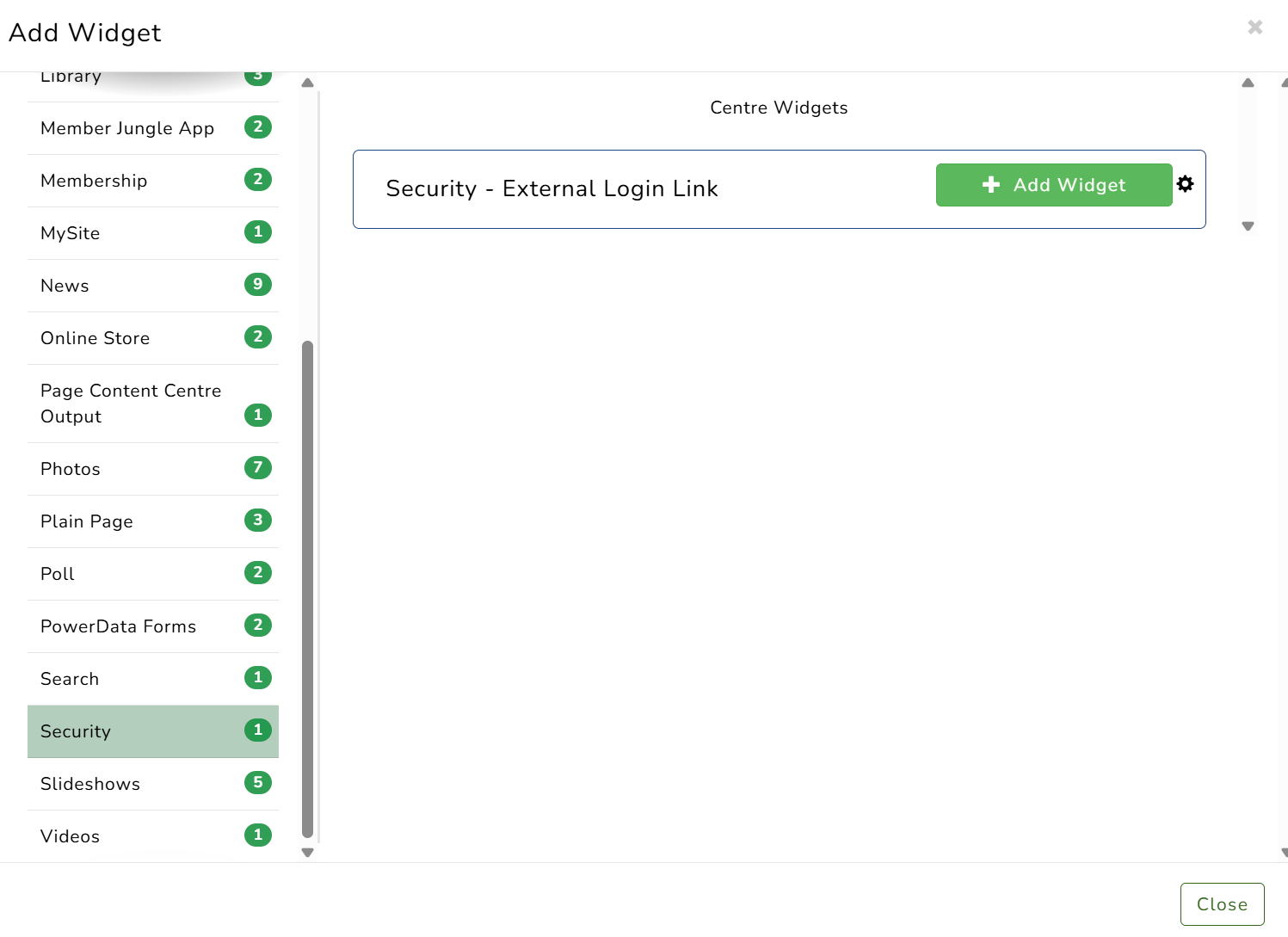
Configuring the External Login Link Widget
Click the cog to open the settings of the widget

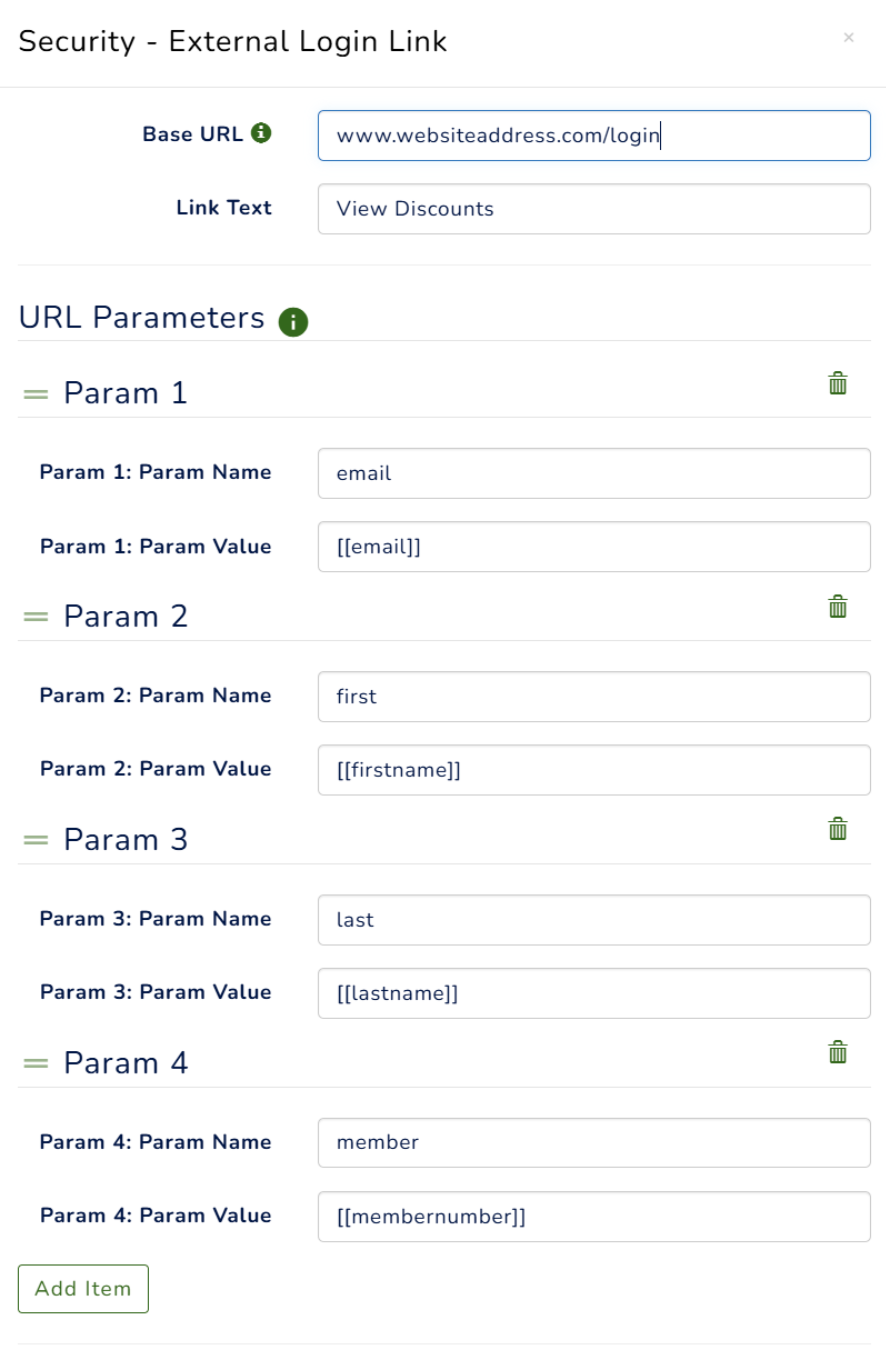
Once the widget settings are open, you add add in the URL, hyperlink text and parameters.
- Base URL: This is the url that your members should be directed to when clicking the link
- Link Text: This widget will create a hyperlink. Add the text you would like the hyperlink to use in this field.
- URL Parameters: The member details you would like used to check validation before redirecting to the base URL. Available parameters are shown above. To add a parameter, select the
 button.
Advanced Options
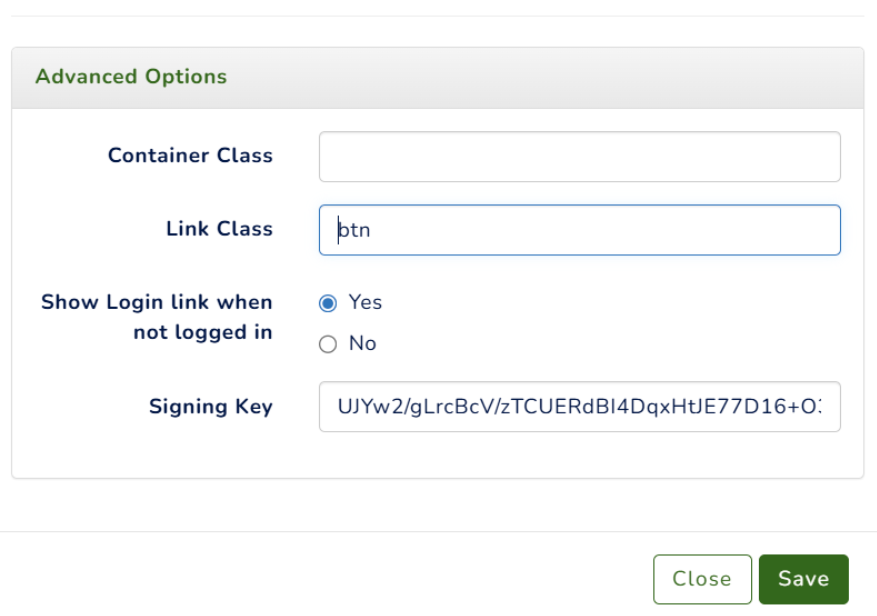
Selecting the Advanced Options link at the bottom of the widget will give the ability to add further settings to your widget.
-
Container Class & Link Class: If you would like to add some styling to your link, you may add a container class or link class (see Custom CSS for where you can add your CSS)
-
Show Login Link when not logged in: It is possible to display the external link to the public and members who are not yet logged in. If you select "no" on this option, then your link will request members login prior to being provided the link.
- Signing Key: This is generated the the external system that you wish to link to. It is best to direct them to this article so that they can review the requirements before generating the key.