
In this article:
The system offers three different types of import options
- Member Import
- Secondary Member Import
- Custom Data Import
How To Access Custom Member Import
This functionality is an add-on functionality. If you don’t have access and need further assistance, please raise a support ticket.
To access this feature, you must be logged in with site administrator or membership administrator access.
Select the Membership module in the top navigation 
On the left side navigation, select Member Import
Custom field import is available to import the data for primary membership holders via the Member Import tab. If custom import is available for your account, after uploading your file and clicking Next, you will see all custom fields you have created in the membership form, alongside the matching fields from your import file. This allows you to map your custom fields before completing the import.
How To Custom Import Member Data
Importing your members with this functionality works similarly to Member Import. You will need to match the columns in your member data CSV to the form fields and dataset fields in your membership form.
Please note that these fields must already exist within the membership form before import. See Customising your membership form and Dataset Fields to create the custom fields.
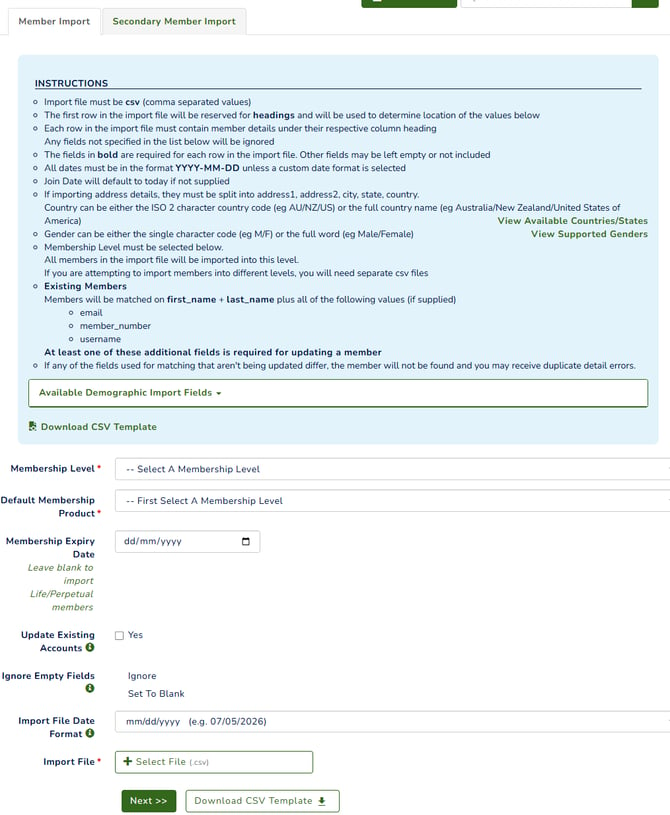
To import your CSV file, complete the required fields. For more information about each field, click here Member Import.
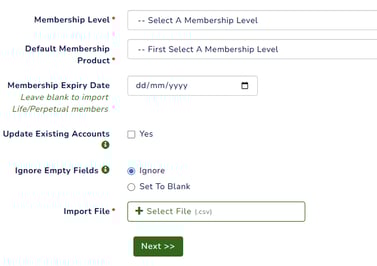
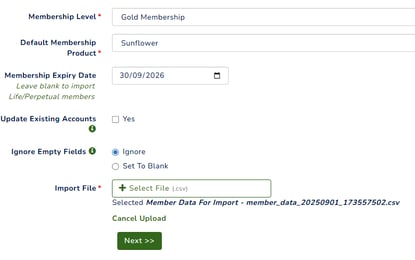
Once you’ve imported your file and clicked Next, you’ll need to match the fields from your membership form (Left column) to the headings in your data using the drop-down options. You will see three headings: Standard Demographic Fields, Custom Level Columns, and Datasets (if available).
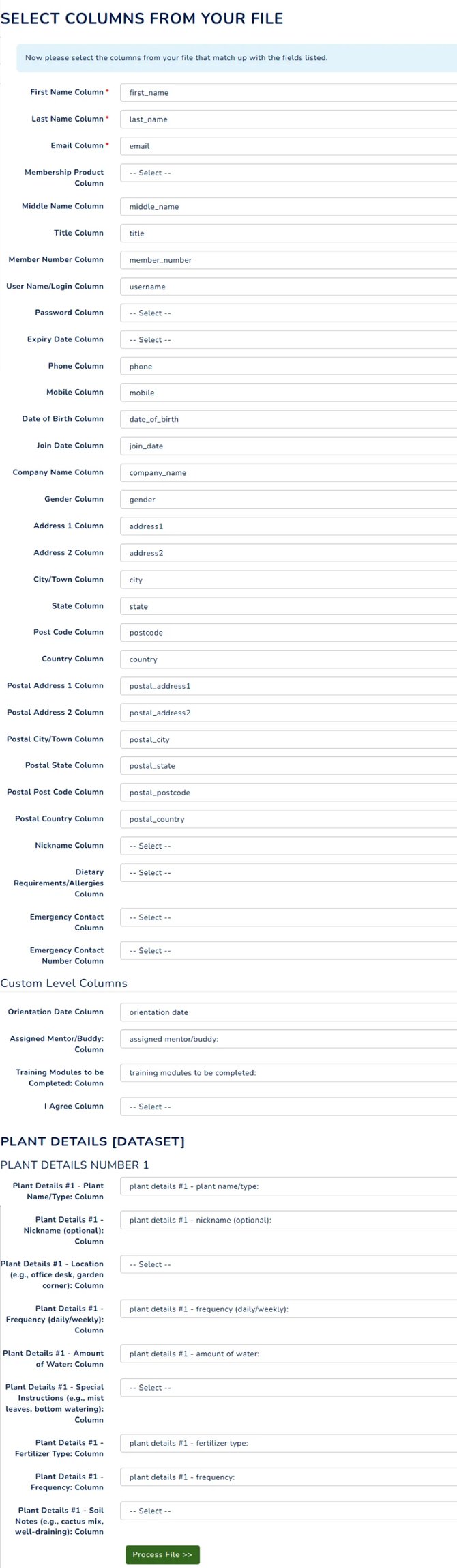
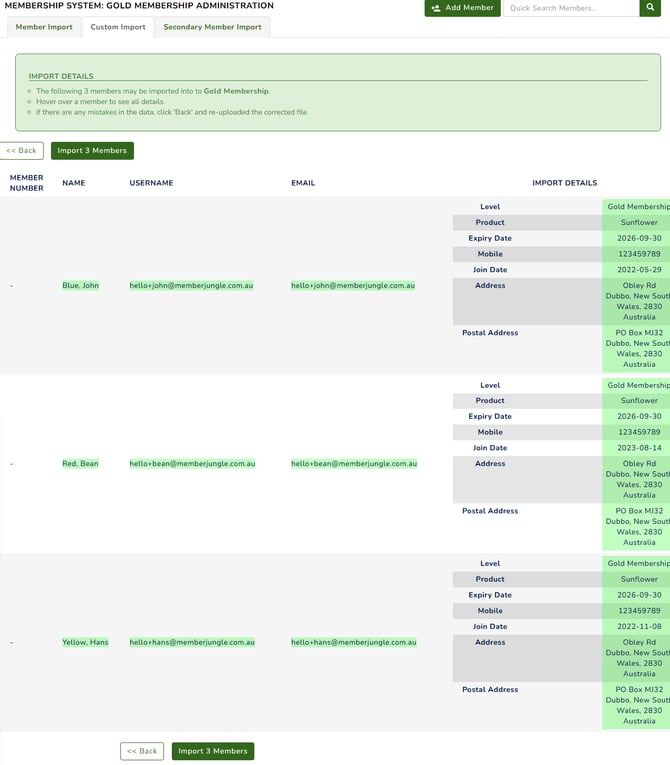
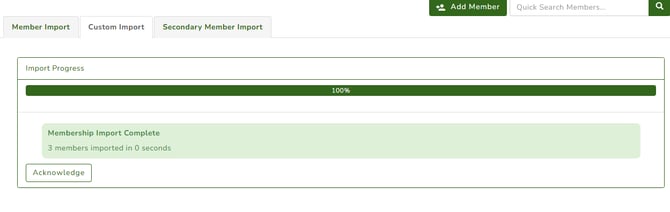
Updating existing custom fields and dataset data for existing members via reimport is not supported. Only standard demographic fields can be updated through reimport, unless you are importing members into a different membership level.
Please see here: Member Import
What if My Data Contains Errors
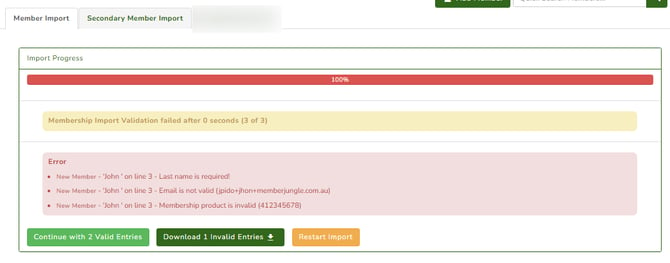
If your data contains errors, the system will show the specific line and the reason for the error.
Based on your screen, you should see either two or three buttons, depending on whether only part of your data contains errors or if the entire import has errors.
From the screenshot above, there is one line causing the error. You have the option to download the error line and proceed with the import while excluding the error line, or restart the entire import process.