The Business Directory displays business details, contact information, images, and locations. Members can also create and manage their own listings, depending on administrator settings.
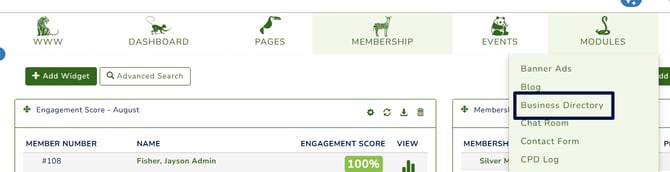
To access it, go to MODULES > Business Directory.
This functionality is not available with all packages. Please feel free to submit a support ticket if you need further assistance.
-
How to Set Up the Business Directory Module
-
How To Create, Edit, Or Delete Categories
-
-
How To Manually Create A Business Listing As An Administrator
-
How To Manage Business Directory Listings
-
Others – Allocating Owners and Viewing Statistics
-
How to Set Up the Business Directory Module
The Business Directory page is set up by default in your system. If you don't see it, please see here. Add a New Page
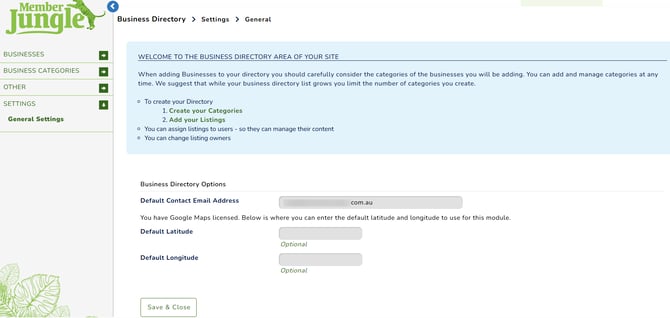
Business Directory General Settings
The default contact email address receives system notifications when listing owners make changes to their listings. If left blank, notifications will be sent to the website email address specified under Organisation Details.
How To Create, Edit, Or Delete Categories
-
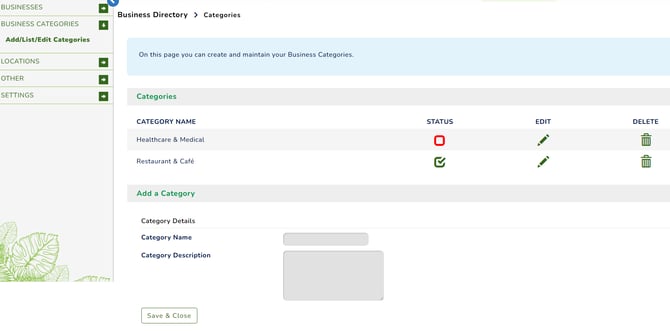
To create a category, navigate to the Add a Category section and enter the category name and description, if applicable.
-
To delete a category, click the bin icon next to the category you want to remove.
-
To edit a category, click the pen icon next to the category and make the necessary changes.
How Members Can Create Their Own Business Listings
Members can create a business listing during signup or renewal via membership form. Once their membership is approved, the listing is automatically approved and follows the membership expiry and renewal dates.
To update their listing, members can go to their account and select the Listings tab. Member's Listing tab
To let members create listings during signup or renewal, administrators must add the Business Directory field to the relevant membership form. Managing Your Membership Forms.
If the listing was created outside the signup or renewal process, the listing status will appear as Pending from the member’s perspective. The listing will be inactive by default and will require an administrator to activate it.
How To Manually Create A Business Listing As An Administrator
-
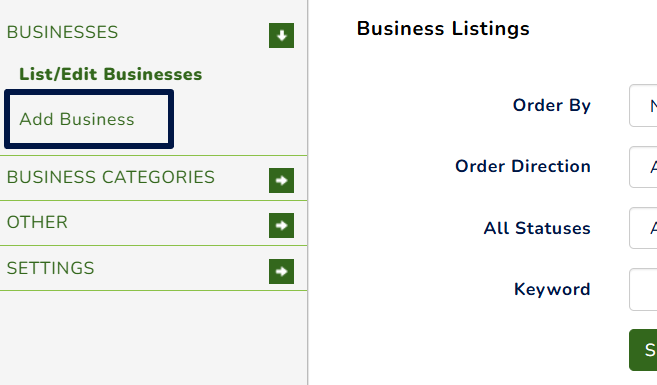
From your left navigation, click 'Add Business'.
-
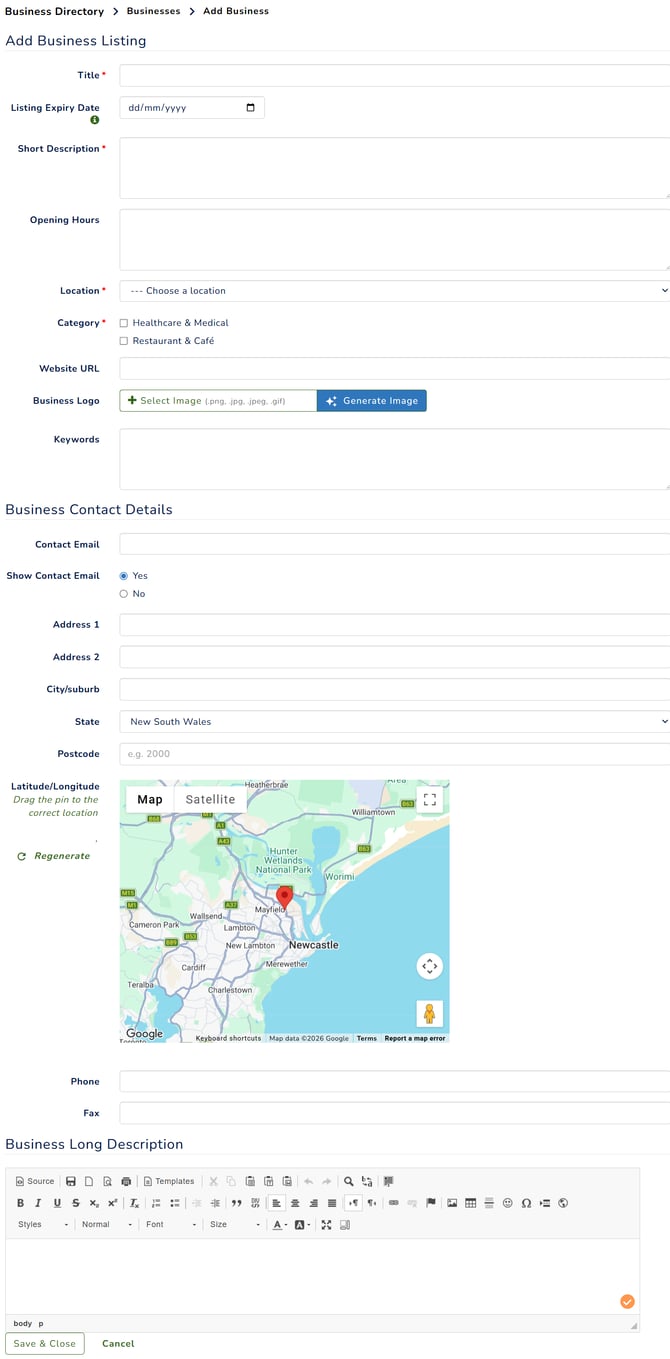
Enter the business details. Fields marked with an asterisk (*) are mandatory.
-
Once completed, click Save & Close. The listing is inactive by default. To activate the listing, tick Activate to enable it.
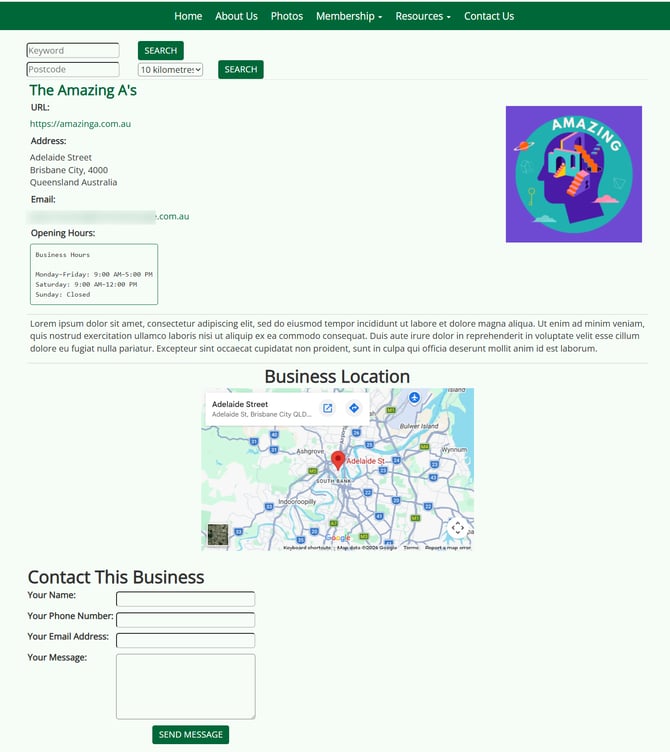
Sample listings on your business directory pages.
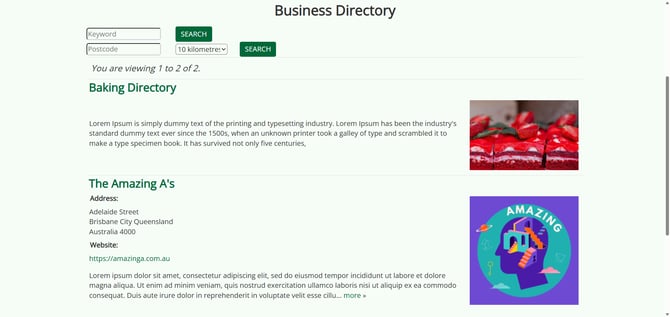
Sample listing
How To Manage Business Directory Listings
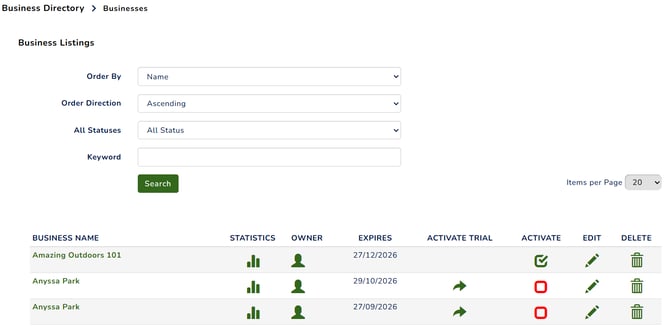
To find a specific listing, use the filters available on your dashboard to narrow down the results.
Here are the additional options to manage your listing.
- Statistics – View statistics and activity related to the listing.
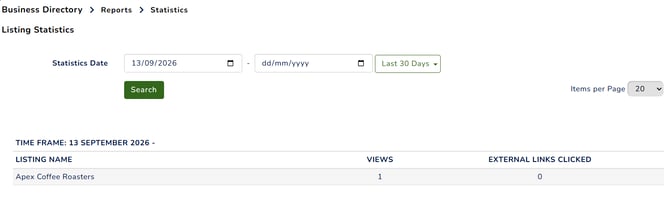
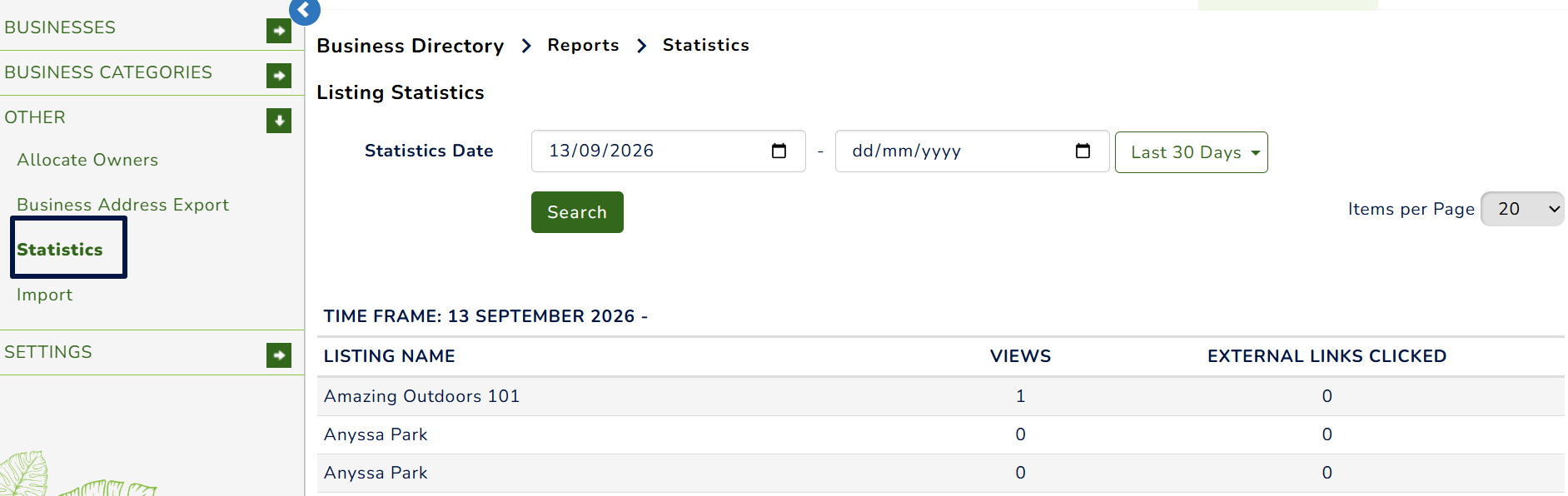
The Statistics area will show;- The listing name.
- Time Frame - adjust the date range using a preset or enter custom dates.
- External Links Clicked - Number of links to external websites that have been clicked from this listing (ie - the business website etc).
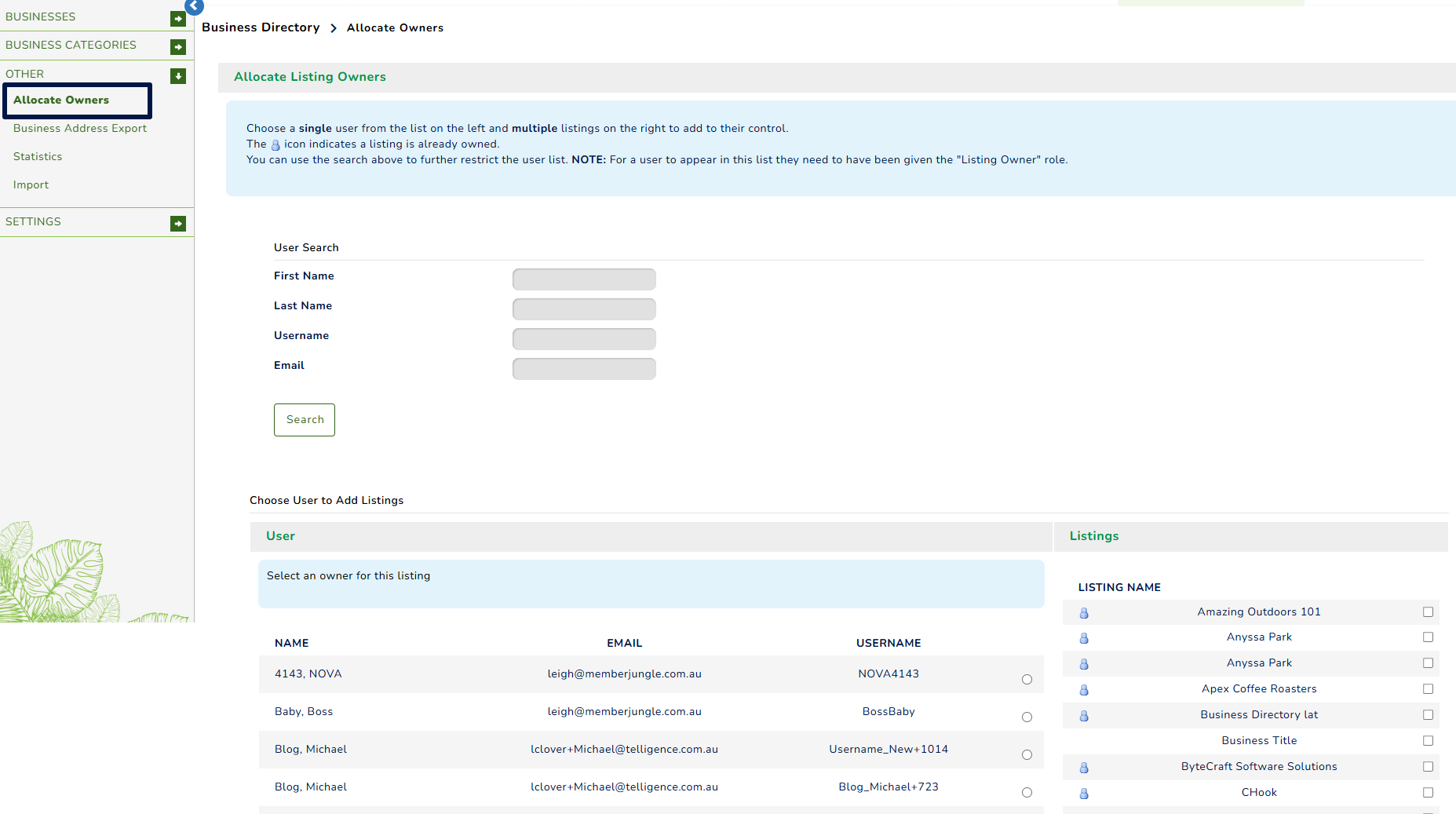
- Owner -the Allocate Owners column lets you assign members to business listings. Search for a member, select listings, and assign ownership. Members who create listings are assigned as owners by default.

- Man Icon – Indicates that an owner is assigned. Click the icon, then Change Owner to reassign the listing.
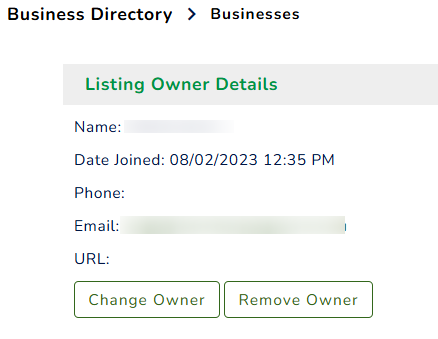
- Plus Icon – Indicates that no owner is assigned. Click the icon and select an owner from the list.
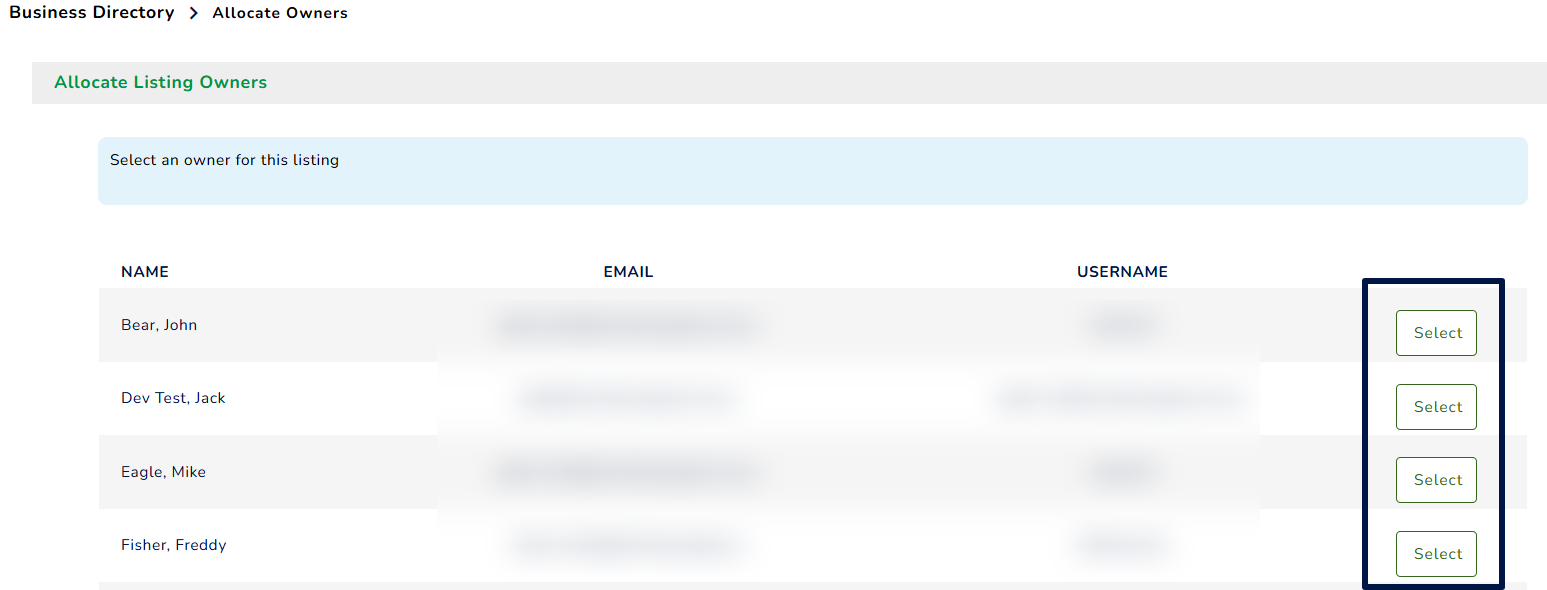
- Man Icon – Indicates that an owner is assigned. Click the icon, then Change Owner to reassign the listing.
- Activate Trial – Click the icon under the Activate Trial column to activate a 30-day trial period for the listing. The listing will expire once it reaches the expiry date.
- Activate – Activate the listing and make it visible on the Business Directory page.
- Edit – Make changes to the listing details.
- Delete – Remove the listing from the directory and the system.
Others – Allocating Owners and Viewing Statistics
To allocate owners, click a user in the first column, select the relevant listings in the second column, then click Save and Close.
To view listing statistics, navigate to the Others section and use the filters at the top of the screen to adjust the results.
How To Export Business Addresses
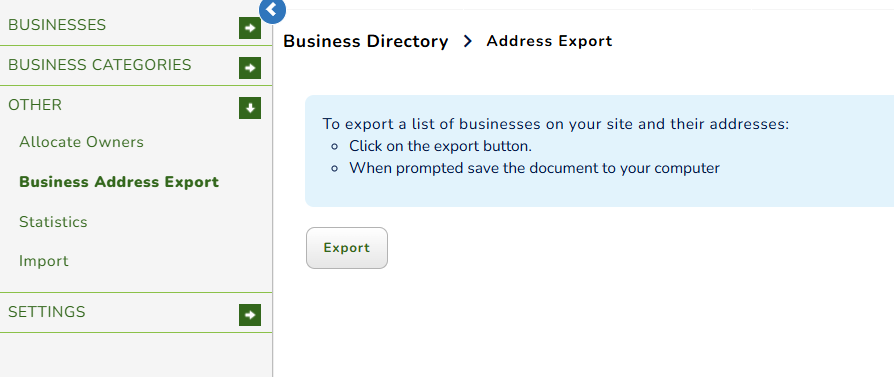
To export a list of businesses and their addresses from your Directory, select Other from the left-side menu, and click Business Address Export.
Click the  button.
When prompted, click the Save button to save the Excel file to your computer.
How To Import Business Listings
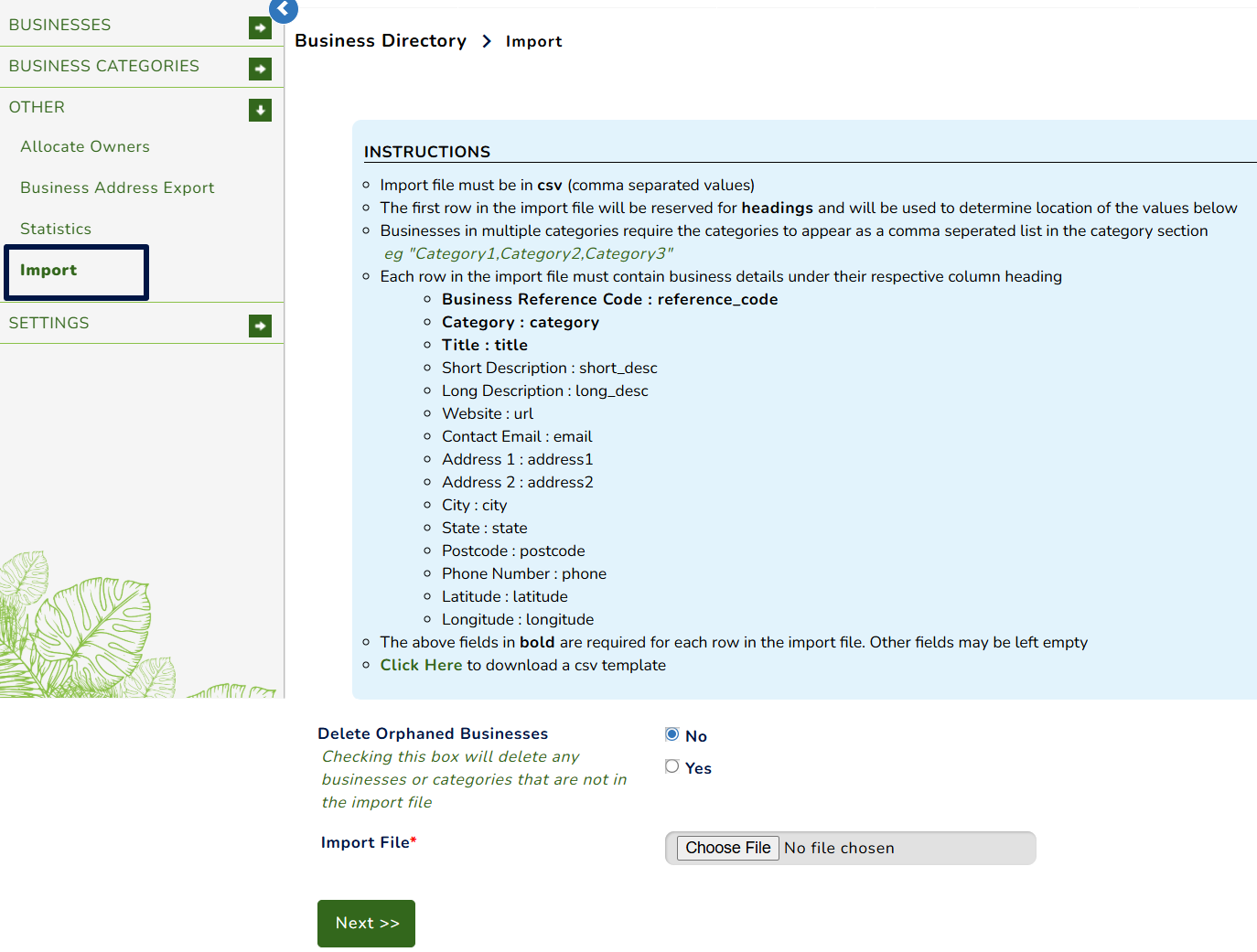
Import listings by navigating to Modules > Business Directory > Others > Import, then follow the on-screen instructions.