
The Email and SMS Campaign module supports both Public and Linked campaigns.
Linked Email and SMS campaigns are associated with specific modules, allowing you to send campaigns to users within those modules.
Email Campaigns can be linked to:
- Membership – Send email campaigns to members within the Membership module.
- Events – Send email campaigns to registrants of a specific event. You can also use the
- Security Roles – Send email campaigns to users assigned to a specific security role.
- Business Directories – Send email campaigns to members who have a business directory listing.
SMS Campaigns can be linked to:
- Membership – Send SMS campaigns to members who have a mobile number saved in their account.
- Security Roles – Send SMS campaigns to users assigned to a specific security role.
Linked Campaigns (green box) – These campaigns are linked to specific modules, allowing you to send emails or SMS messages to users associated with those modules.
Public Campaigns (blue box) – These campaigns are not linked to a specific module and can be sent to subscribers or custom recipient lists. This allow public subscription or manual import for SMS and Email Campaigns.

How to Link Email Campaign to Specific Module
You need to read this article on how to create an Email and SMS Campaign: Setting Up the Email and SMS Campaign Module.
To link a campaign to a specific module, select the desired module from the Associated Fields dropdown menu. Then, tick the other options based on the instructions here: Setting Up the Email and SMS Campaign Module. Once saved, you can start sending to users under that specific event.
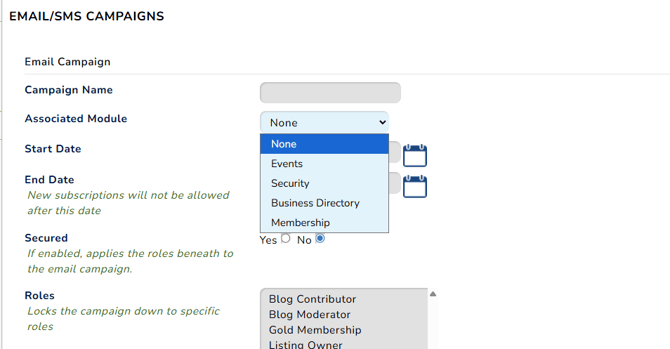
Membership Linked Email Campaign
To send an email to members using a membership-linked email campaign, please follow the steps below:
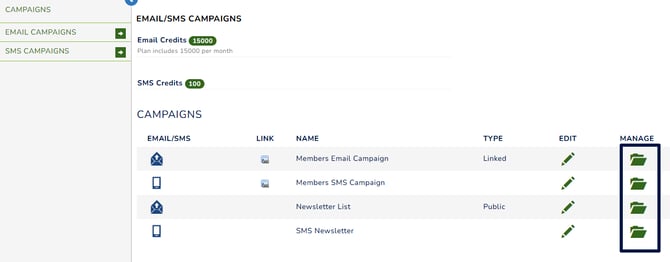
1. Navigate to the Campaigns list, then click the File icon under the Manage column next to the campaign you want to use.
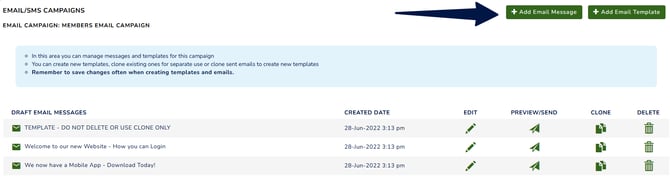
2. Create your email template or email message, please see more detials here: Send an Email Campaign
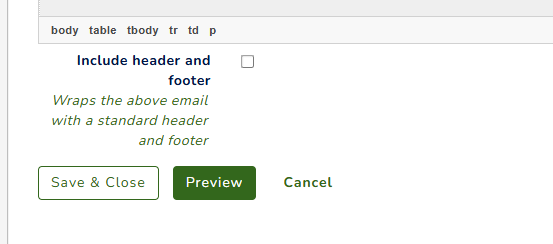
3. Once you have finished composing your email, scroll to the bottom of the page and click the Preview button.
4. The preview page will display how your email will appear when it is sent to recepients. At the bottom of the page, you will see the available action buttons. You can send a test email to review the content. Once you are satisfied with the email, click Select Recipients to continue.
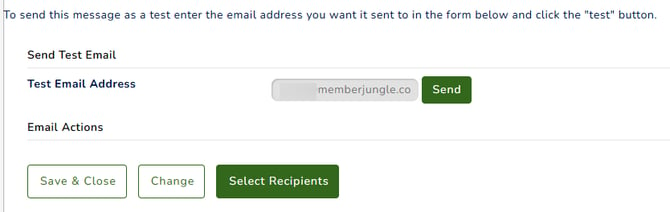
Module-linked email campaigns cannot be scheduled. The scheduling feature is only available for Public email campaigns.
5. Select your recipients based on the available filter as shown onn your screen.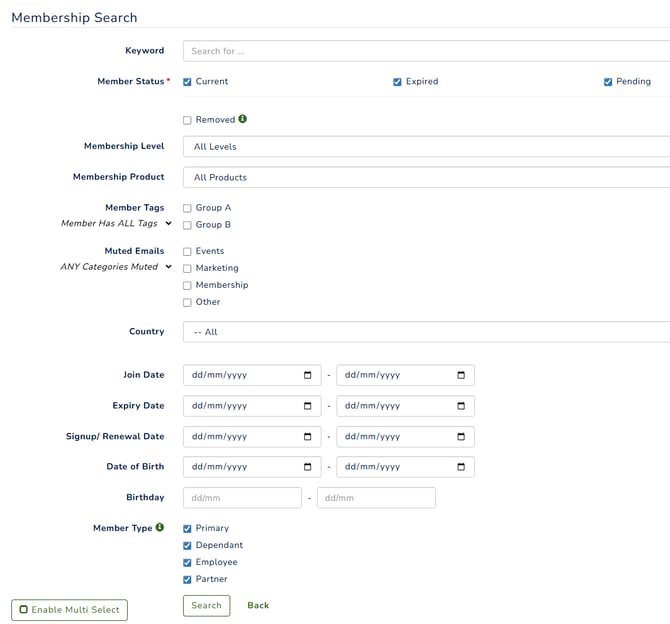
When you have completed the fields, click "Search".
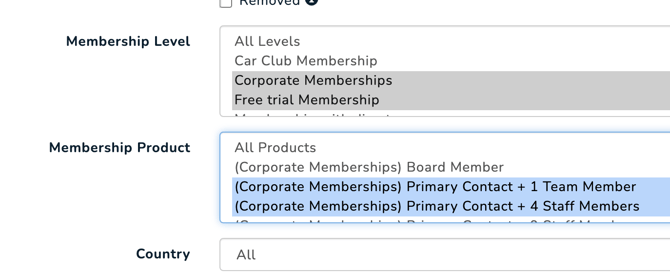
If you want to select multiple membership levels or products at the same time, click the Enable Multi-Select button. You can then select multiple options by holding down the Ctrl key (or Shift for a range of consecutive items) while clicking the desired options.
6. A message at the top of the page will display the number of members matching the selected filters, for example: "There are 24 addresses that this email can be sent to."
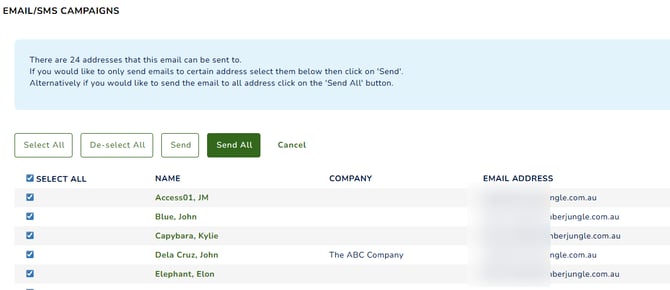
Next, choose the recipients for your email.
- To send the email to all listed members, click Send All.
- To send the email to specific members only, leave Select All unchecked (or deselect it if already selected), choose the desired recipients individually, and click Send To Selected.
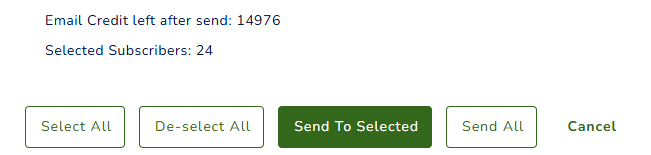
This will start the process of sending the email immediately. Emails will enter a queue and may take up to 15 minutes to be sent. The email will appear in the Pending Campaigns list on your Email Campaigns page.
Security Linked Email Campaign
To send an email to people who have a certain role in Security you need to have "Security" as the associated module.
1. Follow the same Steps 1–3 outlined above in the Membership-Linked Email Campaign guide. The process is identical, except for the Select Recipients step, which varies depending on the type of linked email campaign.
2. A list of all the roles on your site will be displayed. Select one or more roles by holding down the Ctrl key (Windows) or Command key (Mac) while clicking the desired roles. Then click Search Users. The system will display all users assigned to the selected role(s).
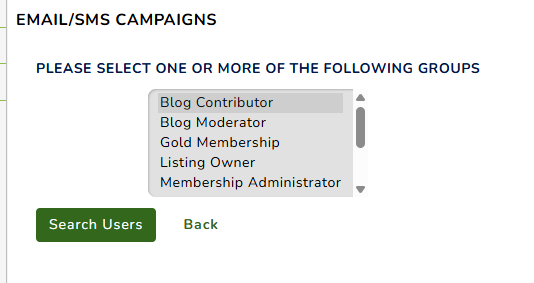
3. Follow the same step 6 outlined above in the Membership-Linked Email Campaign guide.
Event Linked Email Campaign
To send an email to registrants who have registere for an Event you need to have "Event" as the associated module.
1. Follow the same Steps 1–3 outlined above in the Membership-Linked Email Campaign guide. The process is identical, except for the Select Recipients step, which varies depending on the type of linked email campaign.
2. Select the recipients by choosing the event name, then click Search. The system will display all registrants for the selected event.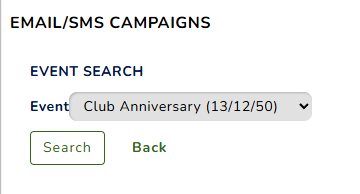
3. Follow the same step 6 outlined above in the Membership-Linked Email Campaign guide.
The Events module is not currently integrated with the SMS Campaign module.
Business Directory Linked Email Campaign
To send an email to registrants who have registere for an Event you need to have "Business Directory" as the associated module.
1. Follow the same Steps 1–3 outlined above in the Membership-Linked Email Campaign guide. The process is identical, except for the Select Recipients step, which varies depending on the type of linked email campaign.
2. Select the recipients by using the filter below.
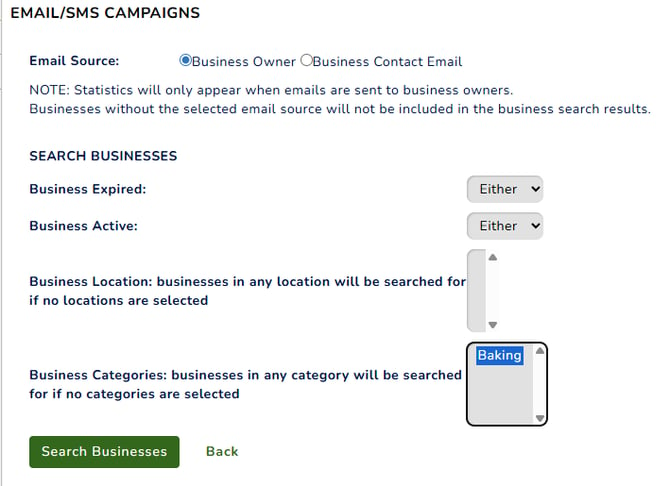
3. Follow the same step 6 outlined above in the Membership-Linked Email Campaign guide.
The Business Directory module is not currently integrated with the SMS Campaign module.
Membership and Security SMS Linked Campaign
Sending SMS campaigns follows almost the same process for both linked and public campaigns. The only difference is the Select Recipients step. As explained above, the recipient selection screen varies depending on the linked module or whether the campaign is a public campaign.
For more information, please refer to the relevant Select Recipients section above. For sending an SMS campaign, please see here: Manage an SMS Campaign