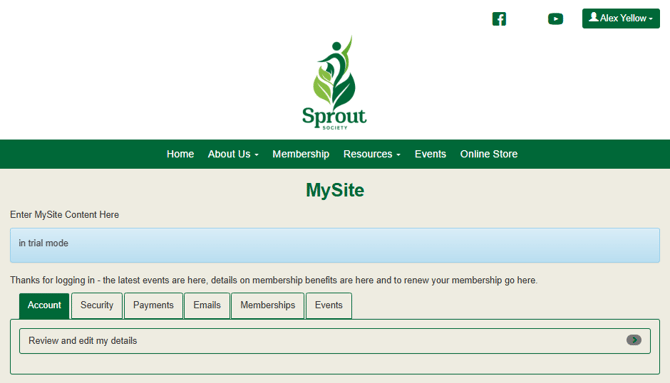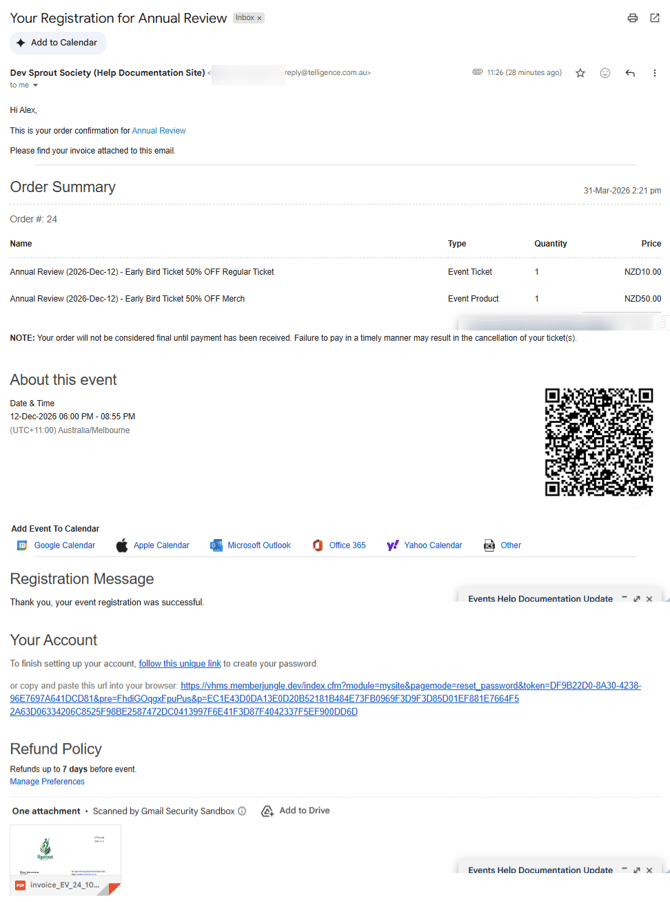
There are two common types of events in the system, depending on how your admin created them. Your screen may differ depending on whether the event is registration-only (free) or a ticketed event that requires payment.
- Registering for an Event
- Purchasing Event Tickets and Add-on Products
Registering as a Member / User
As a member or an existing user, you can register for events via the app ( member only) and website.
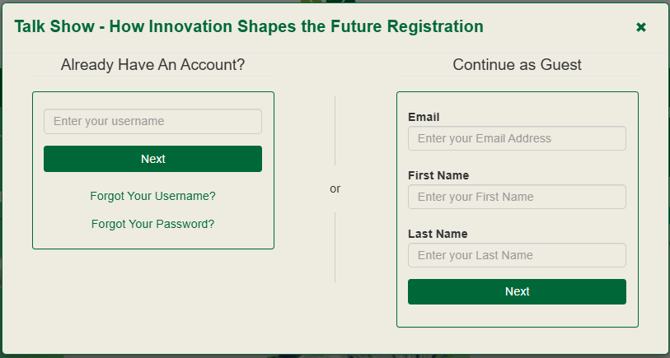
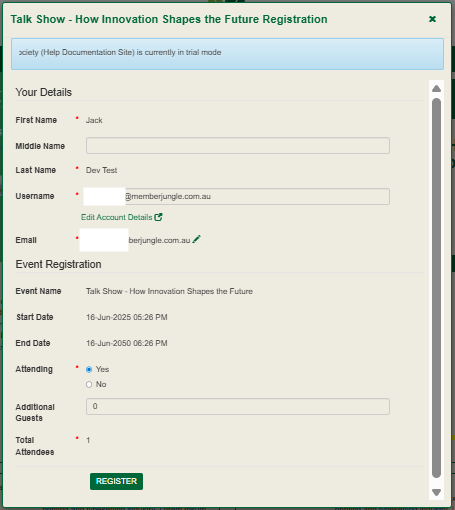
1. Please navigate to the event page and click 'register'.

Registering as a Guest / Non-Member
As a non-member, you can register for events via the website.
1. Please navigate to the event page and click 'register'.
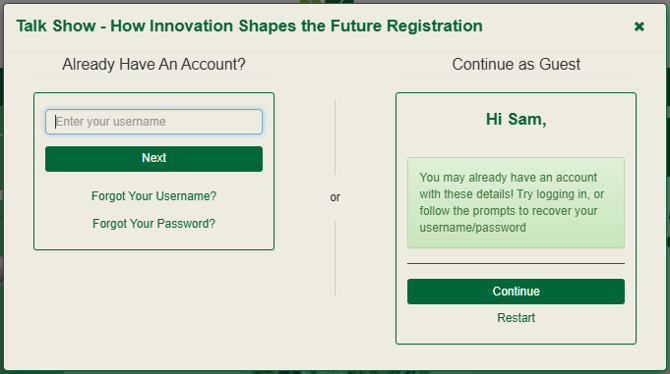
- If you use an email address that matches an existing account in the system, you will see this message:
-
If you are an active user in the system, please log in to your account by clicking Next (left section) and following the steps Registering as a Member / User. However, if you believe you are NOT a member and an active user in the system, you can select Continue.
3. Please enter the 6-digit code that was sent to your email.
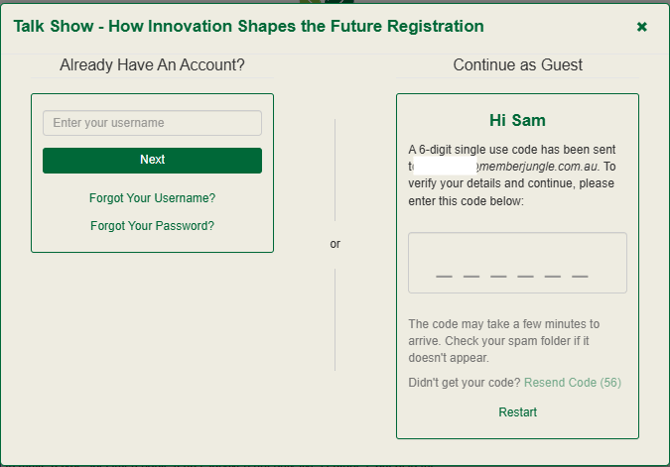
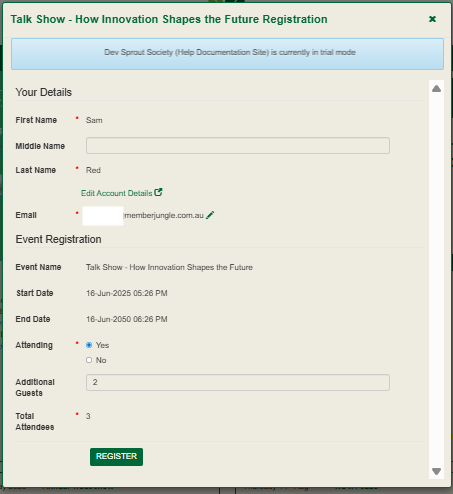
4. Once the codes are entered correctly, a pop-up message will appear on the screen. To add more than one registrant, enter the number of additional registrants in the 'Additional Guests' field. If none, you can leave it as 0. Once done, click 'register'.
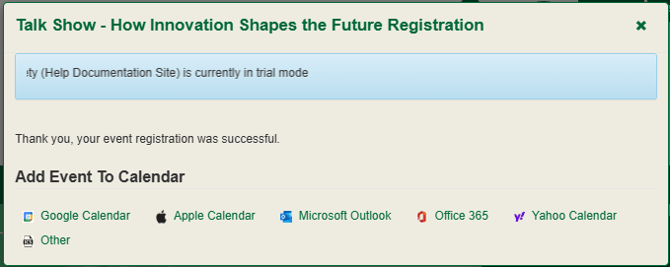
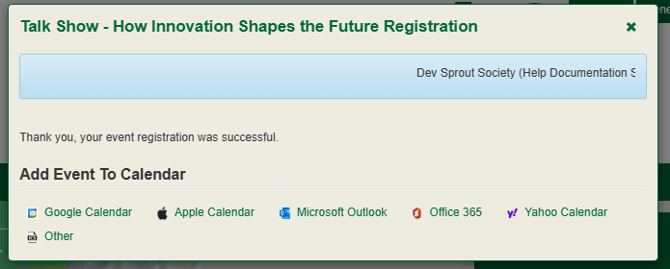
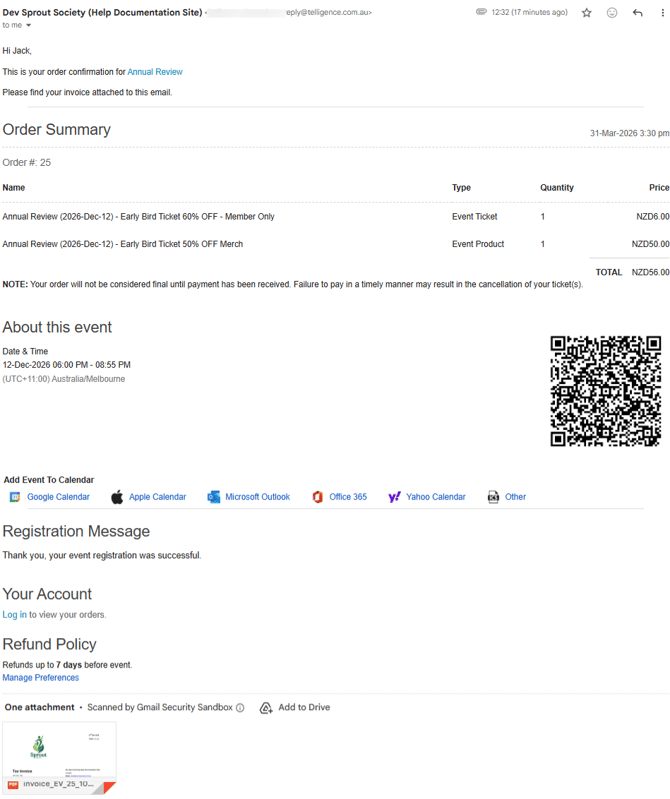
5. A successful message will appear on your screen, and a confirmation email will be sent to your email address.
Purchasing Event Tickets as a Member/User
As a member or an existing user, you canpurchase event tickets via the app ( member only) and website.
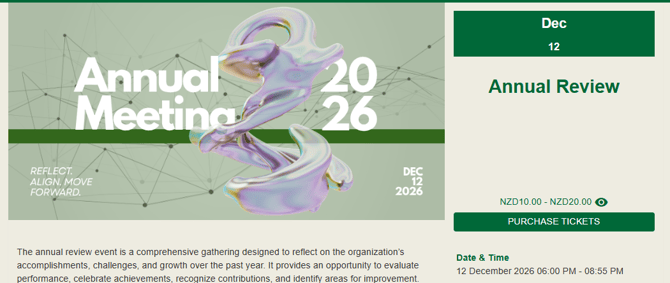
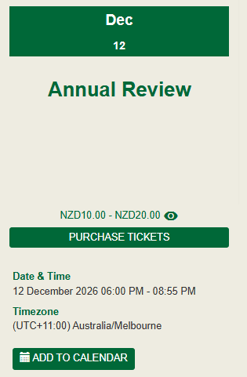
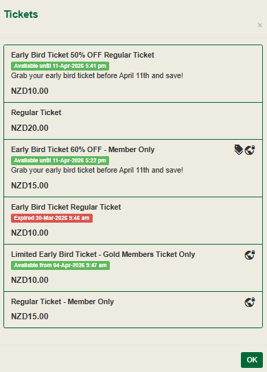
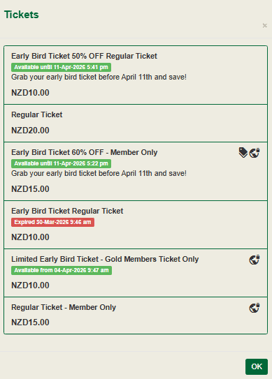
1. Go to the event page and click “Purchase Tickets.” You might also see an option to preview all active tickets by clicking the amount with the eye icon above the button. Please note that this feature may not appear on all events, depending on how the event was set up.
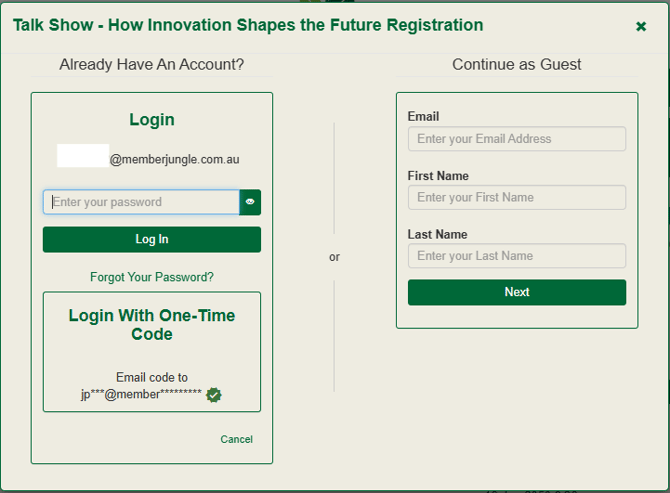
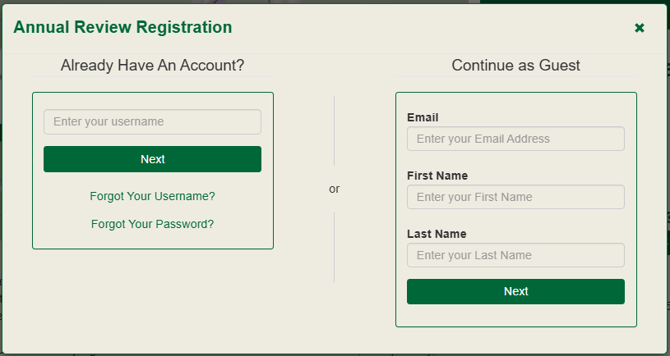
2. On the left side of the screen, in the “Already Have An Account” section, please enter your username. Then, click 'next'.
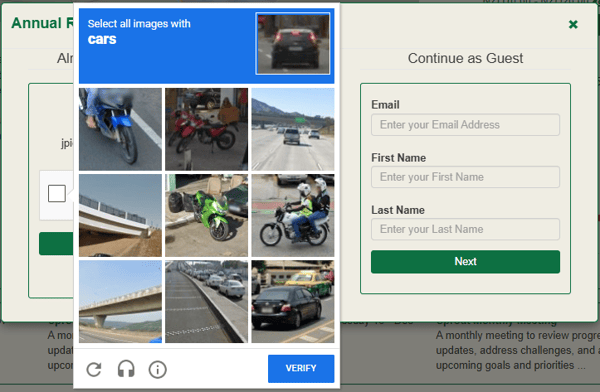
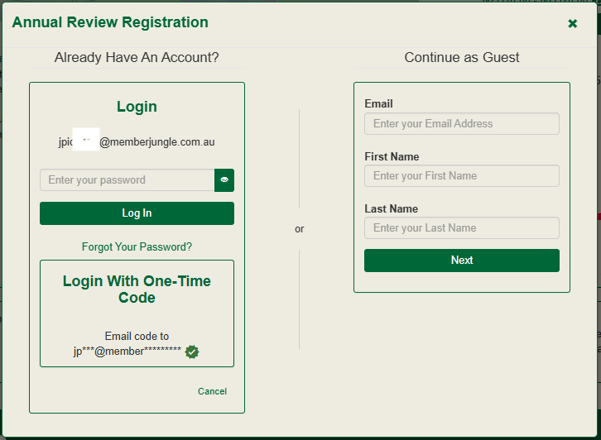
- Please follow the prompts that appear on your screen:
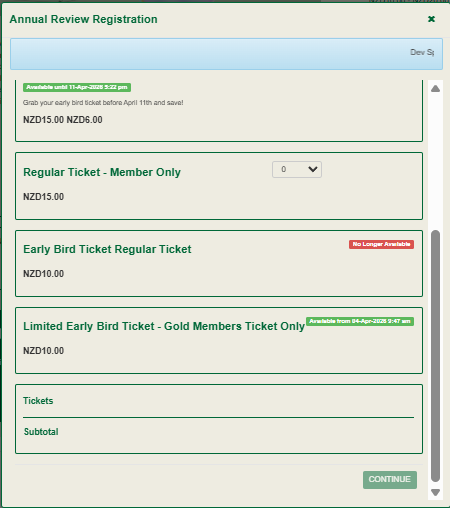
3. Once logged in, a pop-up page will appear showing all tickets available for purchase. Please use the drop-down option to select a ticket type. Click 'continue' once done.
Purchasing Event Tickets as a Guest / Non-Member
As a guest/non-member, you can purchase event tickets via the website.
-
Go to the event page and click “Purchase Tickets.” You might also see an option to preview all active tickets by clicking the amount with the eye icon above the button. Please note that this feature may not appear on all events, depending on how the event was set up.
2. On the right side of the screen, in the “Continue as a Guest” section, please fill out your details. Then, click 'next'.
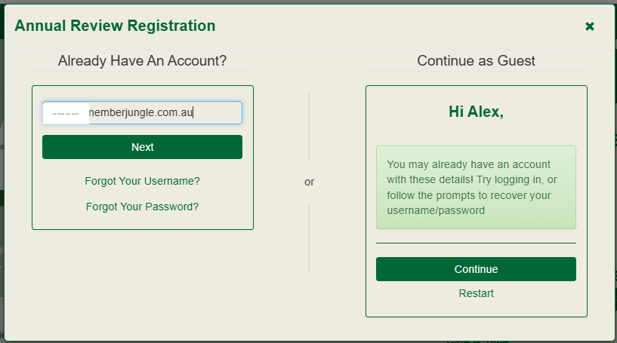
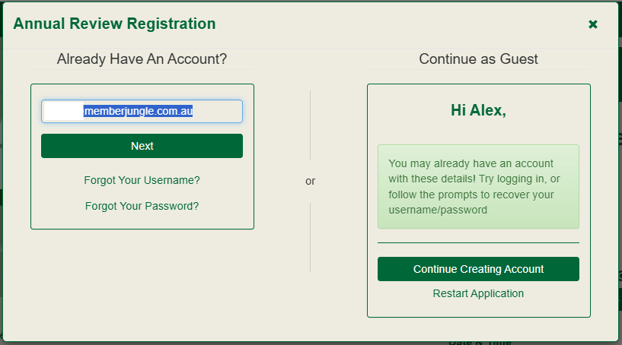
- If you use an email address that matches an existing account in the system, you will see this message:
-
If you are an active user in the system, please log in to your account by clicking Next (left section) and following the steps Purchasing Event Tickets as a Member/User. However, if you believe you are NOT a member and an active user in the system, you can select Continue.
3. Please enter the 6-digit code that was sent to your email.
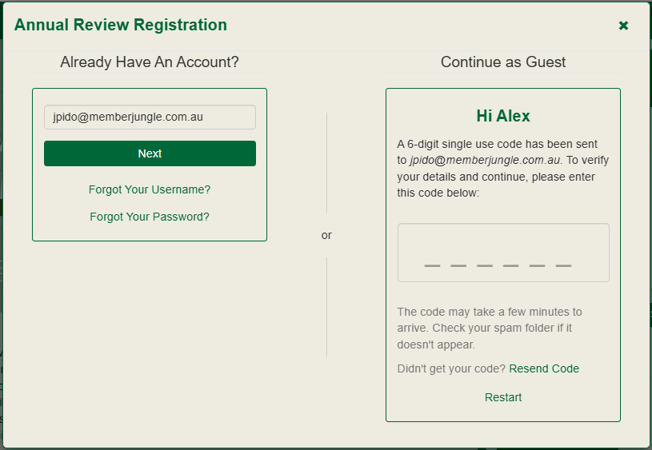
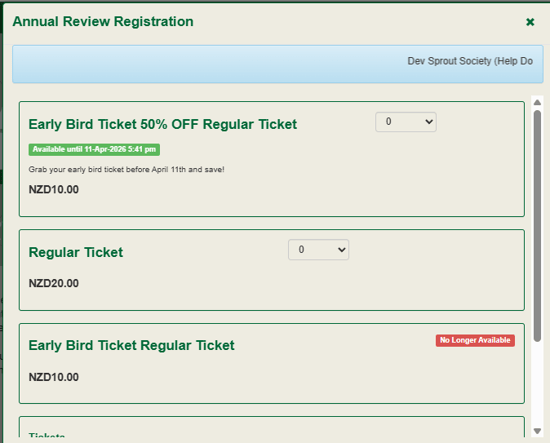
4. Once entered, a pop-up page will appear. The page will only show the available tickets for purchase. Use the drop-down menu to select the number of tickets you want to buy. Please select 'continue' once done.
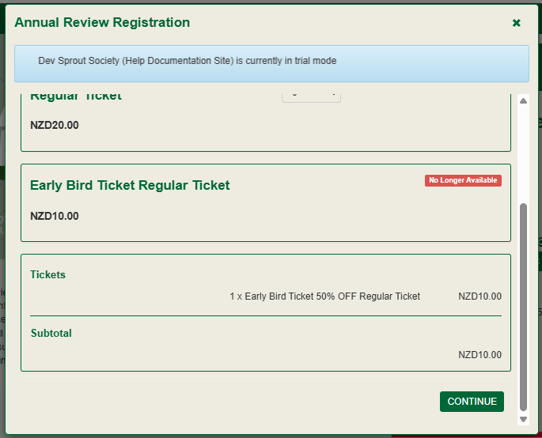
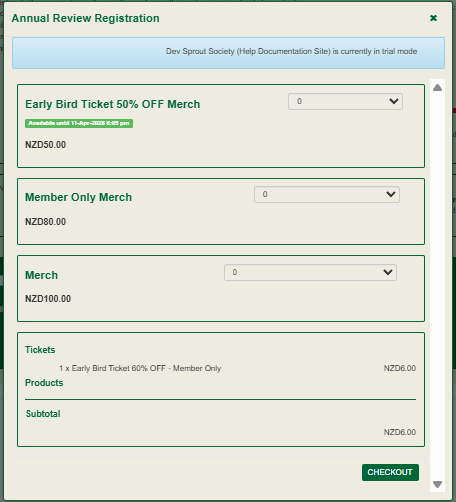
5. If 'add-on products' are available, you can purchase them by selecting the number of items from the drop-down menu. Please proceed to 'checkout'.
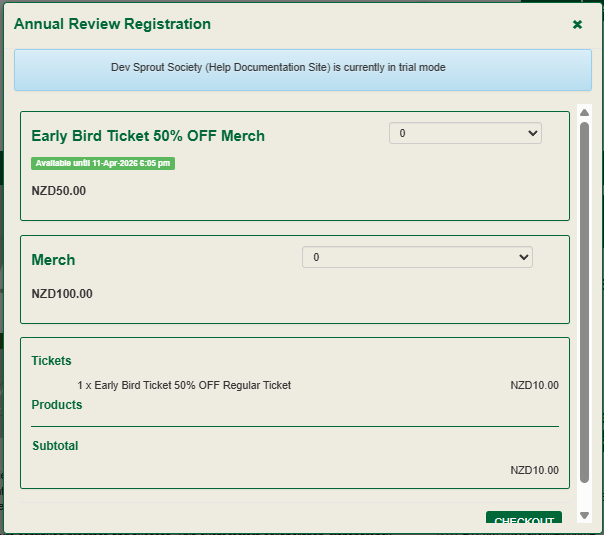
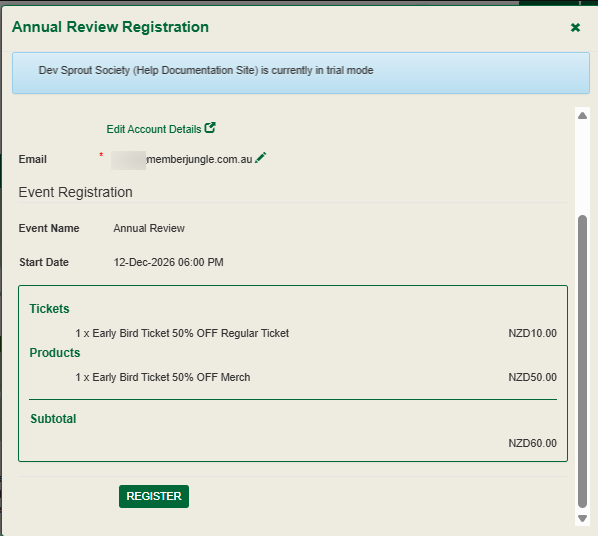
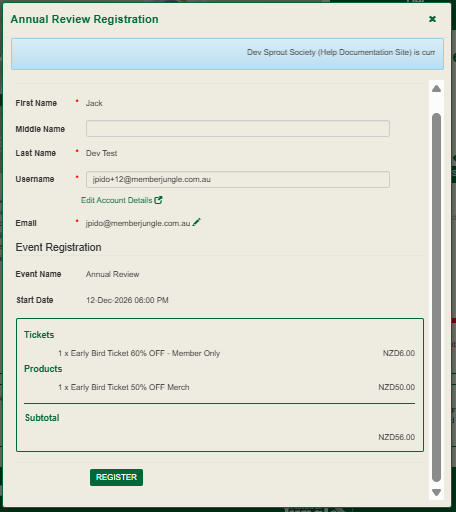
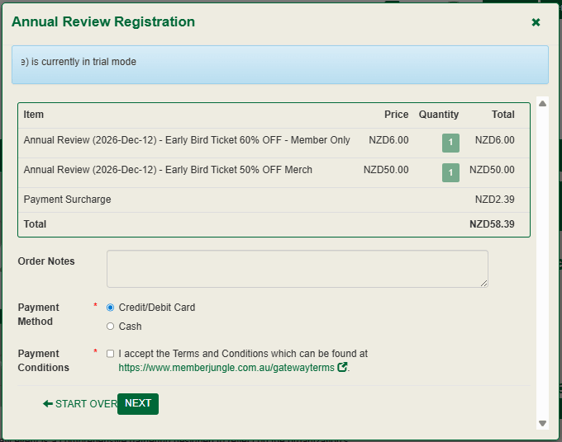
7. Please follow the checkout prompt.
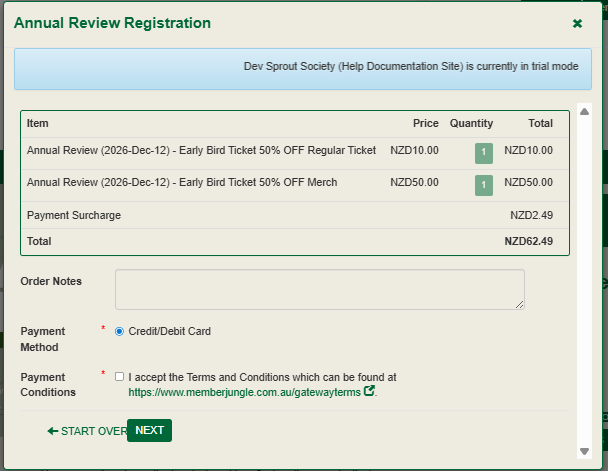
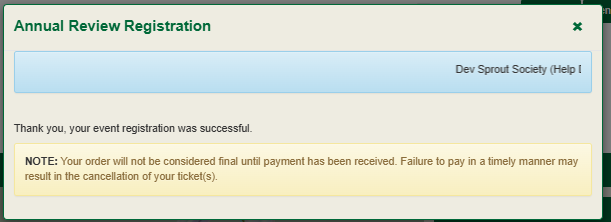
8. Once completed, you should receive an email with the event details. You will be automatically logged in after completing the transaction; however, once you exit or log out, you will lose access. Completing the account setup is optional, but if you choose to do so, you will be able to access your account and view your transaction history in the system. The email will also include an option to complete your account setup.