
In this article:
- How Do I Upload a CSV for the Comparison Report
- How Do I Analyse the Comparison Report
- How Do I Export the Comparison Report
How Do I Upload a CSV for the Comparison Report
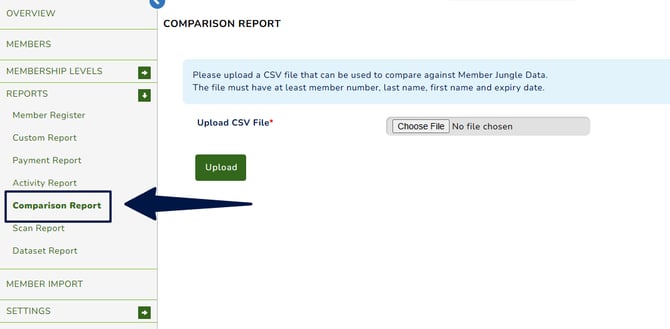
To get started, navigate to Membership, then select Reports > Comparison Report from the left-hand navigation menu.
Please note that this functionality is only available on certain packages. If you do not see this feature in your system, please feel free to raise a support ticket.
-
Prepare your file
Ensure your CSV file includes the following fields: Member Number, Last Name, First Name, and Expiry Date. -
Select the file
Click Choose File on your screen and select the CSV file you want to upload. -
Upload the file
Click Upload to begin the process. -
Match the columns
The system will prompt you to match the columns from your uploaded file to the corresponding fields in the system.
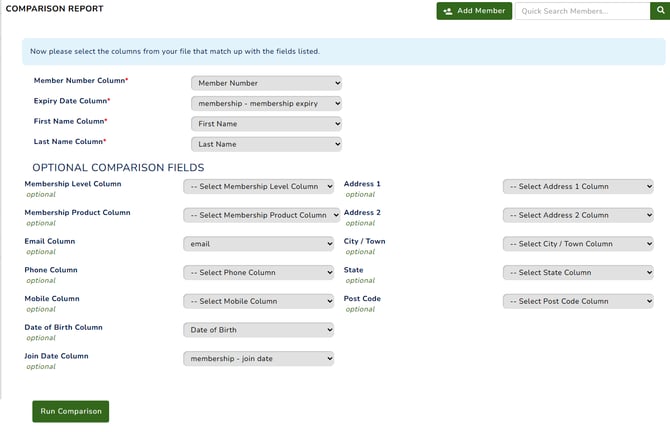
5. Once done, click 'Run Comparison'.
How Do I Analyse the Comparison Report
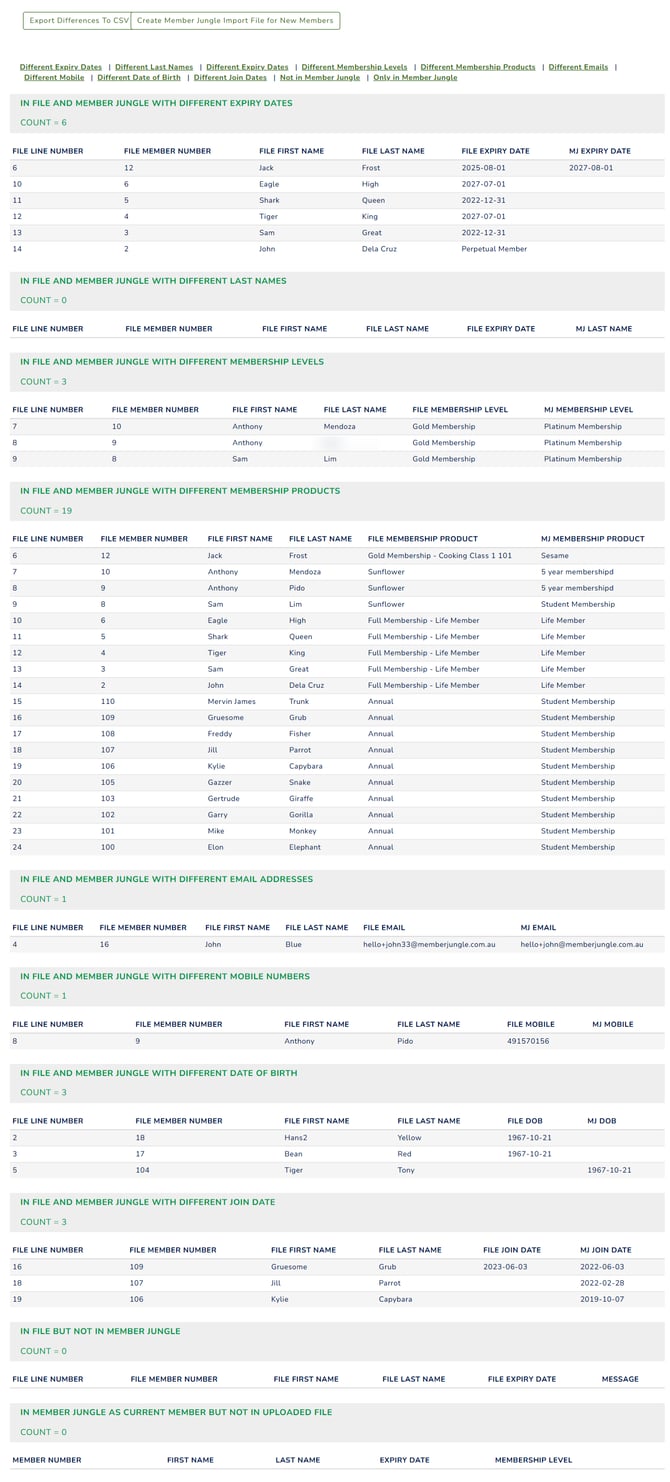
The report is organised into different categories. Each category acts as an anchor link, allowing you to quickly navigate to the corresponding section of the report.

Sample Section: “Different Join Date”
This section of the report highlights members whose join dates in your external file differ from the records in Member Jungle.
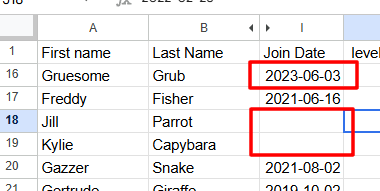
External File: This is the external file data showing members with their respective join dates:
-
Gruesome, Grub – 2023-06-03
-
Jill, Parrot – empty join date
-
Kylie, Capybara – empty join date
Member Jungle Data: This is the file exported directly from Member Jungle.
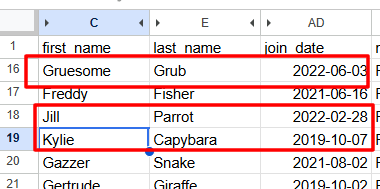
- Gruesome, Grub - 2022-06-03
- Jill, Parrot - 2022-02-28
- Kylie, Capybara -2019-10-07
The two files contain different data related to members’ join dates. In the comparison report, these differences are highlighted for easy review. Please see below:

This is the complete report that is generated when you create a Comparison Report.
How Do I Export the Comparison Report
You have the option to export the differences to a CSV file or create an import file for new members.
