
Welcome to the future in membership management. Jungle Vision Guide is now in Beta with a conversational guide that can act as a smart assistant that can help with the heavy lifting. Here are just some of the things that you could ask for help with:
Jungle Vision knows your brand colours, your logo, your website address and also has access to your events, news and page content. So it is able to access this as a resource to help you create content, answer questions and generate images quickly and in line with your brand and personality.
- Generate website page content
- Help re-create content from your old website when you are transition to Member Jungle
- Generate event banner Images using your event information (name, dates and more)
- Help give you ideas on what other events you could run
- Create email newsletters using your brand and instantly include any upcoming news or event items without you typing a word.
- Generate posters or images to use on social platforms to help you launch your new Member Jungle site
- Write content for a social post to help you promote your upcoming event
- Answer your support questions
- and more much more...
How to Use Jungle Vision Guide
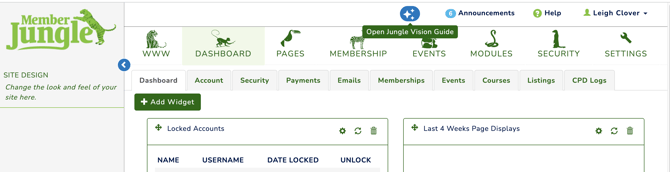
If you have access to Jungle Vision Guide, the blue icon located at the top of the screen will be visible so you can open and ask questions regardless of where you are in the system.
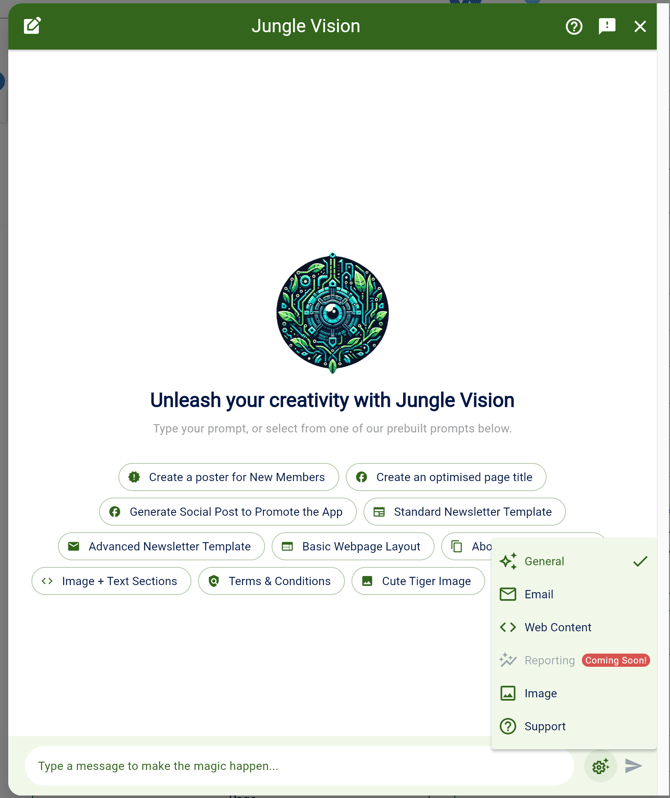
When you open your Jungle Vision Guide, there are some preset prompts to help get you started.
Also you will see at the bottom of the screen, there is a settings icon that means you can change the settings to help give you the best results.
-
General - answer questions, give ideas, help with writing
-
Email - specifically built to help you create email newsletters, typically to be used in the Email Campaign Module. Can include upcoming news and event items.
-
Web Content - create website page content that can be inserted into the editor
-
Reporting - coming soon (currently Jungle Vision guide does not have access to any member or financial data to answer any reporting questions)
-
Image - Generate images, for page content, event specific or general images for external use.
-
Support - help answer any support questions and make it quick and easy to find answers.
Say hello to your new AI Campaign Manager. The Jungle Vision Guide is now live within Member Jungle! This smart assistant takes the guesswork out of email marketing by instantly blending your brand assets with your latest platform news and events. It’s like having a dedicated designer who already knows exactly what your organisation is up to.
It Remembers your Style - automatically pulls your brand and colours and logo from your website.
It Stays Up to Date - can instantly insert your latest news and events so you don't have to manually add them.
It Works Quickly - just provide the prompts and the ideas and Jungle Vision Guide will do the rest, ready to send to your member base.
Click on the Generate Content button located within the Email Campaign editor to get started.
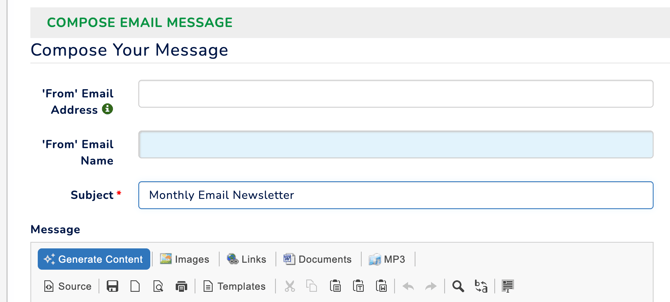
From Design...
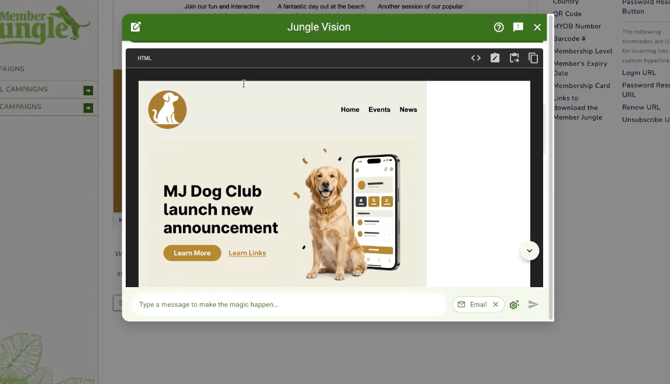
To Final Send..
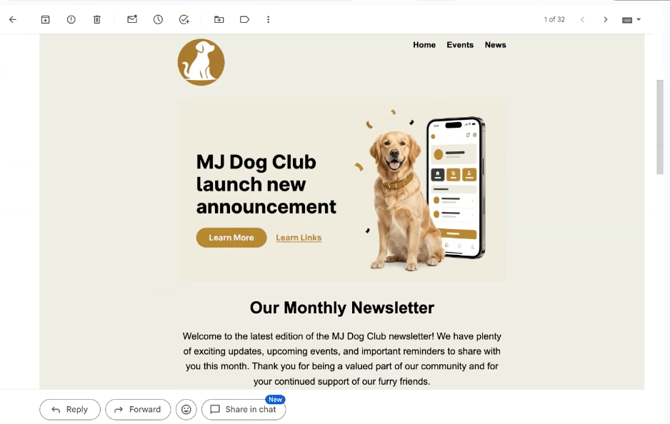
Here is an example of my prompt I used to generate my email campaign.
Please create a detailed monthly newsletter snippet for my club, this month we had our annual presentation night and also I want to thank everyone that volunteered at our charity day. The design should use the provided theme colours to create distinct sections with clear visual separation. The email needs to be compatible with all email clients, including Microsoft Outlook.
Header: Begin with a header section on the main_background color. On the left, include a placeholder for our club logo. On the right, create a simple text navigation menu. The links should use the main_text color.
Main Welcome: Below the header, create the main welcome block, also on the main_background color. This should feature a large, central hero image. Under the image, add the main title 'Our Monthly Newsletter' using the main_heading color. Follow this with a short paragraph of welcome text using the main_text color.
Featured Story: Next, create a two-column feature block with a high-contrast background. Use the main_text color for the background of this section. All text inside this block should use a contrasting light color, like the main_button_text color. On the left, place a placeholder image for our top story. On the right, add a headline using the main_link color, a detailed paragraph, and a 'Read More' button. Style the button with the main_button_background and main_button_text colors.
Club Updates: Follow with another two-column block, this time using the main_button_background color for the background. All text inside this block should use the main_button_text color. The layout should be reversed: a descriptive paragraph and a headline 'Recent Club Updates’. In a list format display the latest 2 news items from the site, Each item should include a including headline, the related news image and a link to read more.
Upcoming Events Grid: Create a section for 'Upcoming Events'. Start with a large, centered headline using the main_heading color on the main_background. Below this, on a clean white background (##FFFFFF), display our next three events in a three-column grid. Each event card in the grid should contain: the event thumbnail image, , the event's date in main_text color, the event's name as a headline in main_heading color, a one-sentence description, and a 'Register Now' button styled with main_button_background and main_button_text.
Reminders List: Create a 'Reminders' section using the main_link color as the background. All text inside should be a light, contrasting color like white or the main_button_text color. The section should contain a list of two important reminders. Each reminder should be presented in a two-column format with a button on the left and a heading/descriptive text on the right.
Reminder 1: A heading 'Membership Renewals' and button
Reminder 2: Use a heading 'Update Your Profile' and button
Finally, create a footer section using the main-button_background colour for the background. All text inside this block should use the main_button_text color. The layout should have in two parts, the left hand side listing some useful website links (e.g. homepage, contact us, membership, news) plus an unsubscribe link (using [[unsubscribe]] as the url, and the text 'Unsubscribe'). The right side should include my club's name and a link to the website.