
- What is 2FA ( Two-Factor Authentication)
- How 2FA Can Be Sent
- How to Manually Enable 2FA as an Administrator on Behalf of a Member
- How to Enable 2FA as a Member or User
- How to login to your Club Site as a Member/User
- How to enforce 2FA for Members
What is 2FA and what are the benefits?
Two-Factor Authentication (2FA) adds an extra layer of security by requiring two forms of identification, such as your password and a one-time code sent to your email or mobile number, or generated by an authenticator app.
One-Time Password (OTP) is not available if 2FA is enabled. To enable 2FA, the account must have a password set up. Enable Two-Factor Authentication (2FA)
How 2FA Can Be Sent
Two-Factor Authentication (2FA) can be enabled for members and is enforced for users with administrative module access to enhance the security of club data and member details. 2FA codes can be sent via:
-
-
- SMS
- Mobile app notification (for users already logged in to the app but accessing their account from another browser or device).
- Authenticator app - the system will not send a code ; instead, you can use the code generated in the app to log in. How to Configure Authenticator App
-
How to Manually Enable 2FA as an Administrator on Behalf of a Member
-
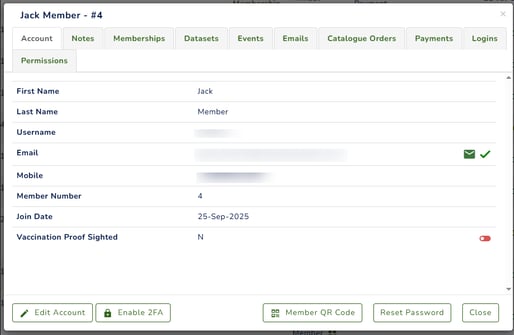
Navigate to the member's account and, under the Account tab, click Enable 2FA.
-
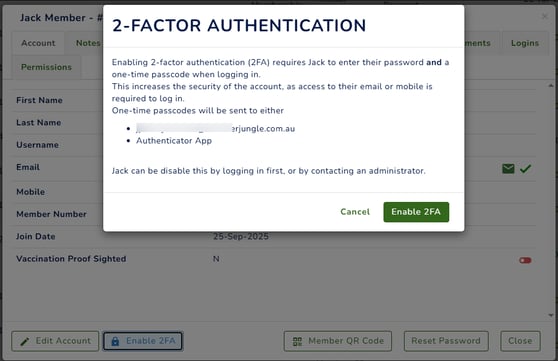
Once selected, a pop-up message will appear—click Enable 2FA to confirm.
-
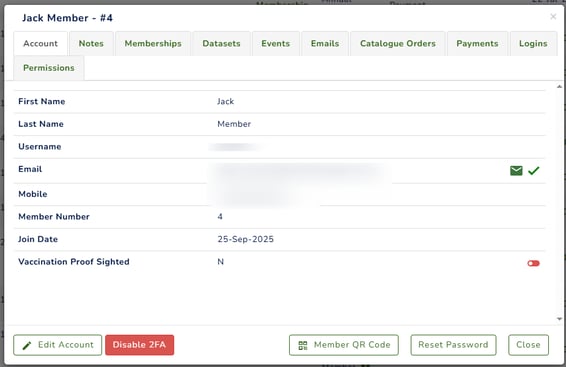
After enabling, the button will turn red.
-
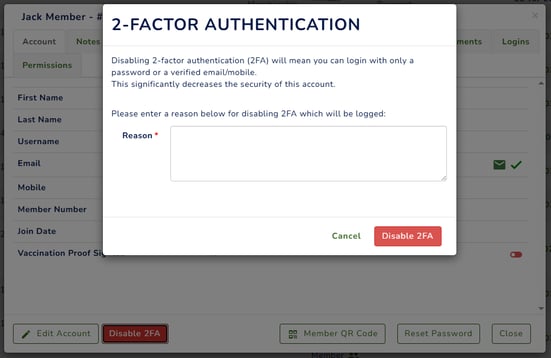
To disable 2FA, the system will prompt you to provide a reason for disabling.
Please note that 2FA is optional for all members. However, account users with administrative module privileges are required, and will be prompted by the system, to enable 2FA.
Currently, the default timeout for 2FA is 7 days. However, you have the option to request an extension by submitting a support ticket.