
Please note that the report only covers data from the day this functionality went live. It is not possible to generate a report for any emails sent prior to this feature being activated. This functionality went live on (28/05/2025).
To start, please navigate to Module > Email and SMS Log.
- What is the Email Log Report
- What is the SMS Log Report
- How do I configure email settings and view the Weekly Bounce Report
- What are the other reasons emails might not be received
- What is the difference between bounced and blocked emails
What is the Email Log Report?
-
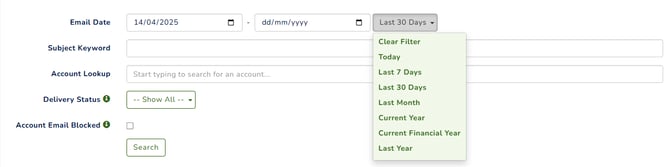
Email Date – Allows you to set a custom date range to filter emails based on when they were sent.
-
Subject Keyword – Use this field to easily filter results by entering a keyword from the email subject (e.g., renew).
-
Account Lookup – You can enter the name or email address of a member/user. A dropdown will appear with matching results based on your input.
-
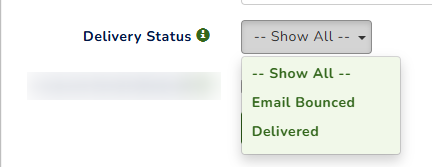
Delivery Status – You can filter the results by selecting from the available delivery status options
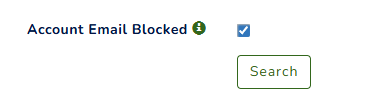
- Account Email Blocked - Tick this option to display accounts whose email addresses have been blocked due to repeated delivery failures.
You can also view the email addresses a member/user has used over time by checking the dashboard, especially if they’ve updated their email address.

How can I filter bounced emails?
Once you filter your dashboard to ‘Email Bounced’, it will generate a report showing a list of members whose emails have bounced.
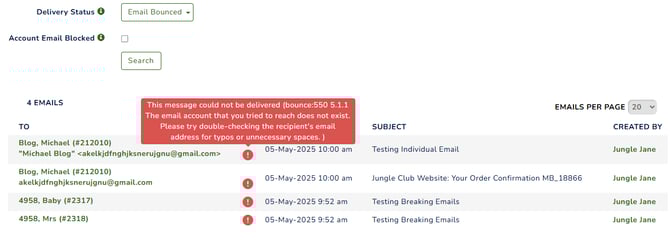
You can hover over the ‘i’ icon to view the bounce error message and what actions you can take. Clicking the icon will redirect you to the Email tab in that member’s profile.
How can I filter blocked accounts?
Tick Account Email Blocked to display all blocked accounts. If one email address is linked to two accounts, both will be marked as blocked.
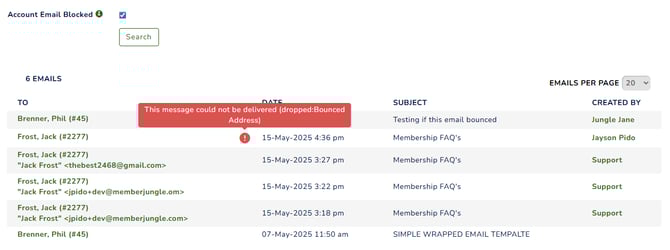
Hover over the ‘i’ icon to view the bounce error and recommended actions. Click it to open the member’s Email tab. Accounts with blocked email addresses will display an ‘Email Blocked’ flag.
.png?width=670&height=396&name=Screenshot%202025-05-15%20at%204.41.42%20pm%20(1).png)
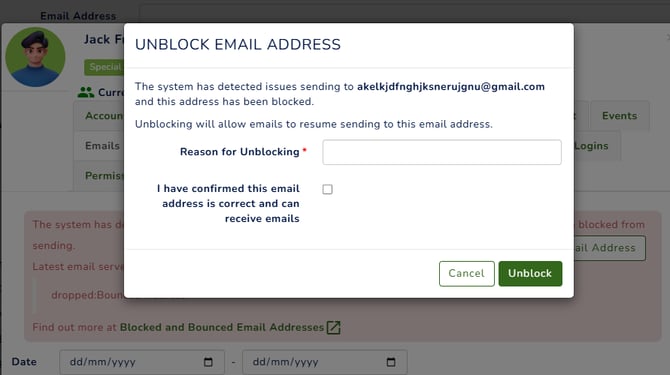
Click ‘Unblock Email Address’ and confirm the email address and reason. Ensure the underlying issue is resolved first, or the address may be re-blocked.
If an email shows as successfully sent with no bounce, it means it was marked as delivered on the system's end. Ask members to check their spam/junk folder and any email blocking or filtering settings, such as organisational firewalls or email provider restrictions.
Please see more details about Blocked and Bounced Email Addresses.
Please see more details here: Email Deliverability from Email Campaign Module
What is the SMS Log Report
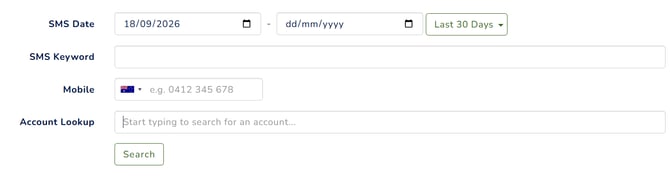
This report shows all SMS messages sent to users, including their delivery status and whether the SMS was accepted successfully.
- SMS Date: Date the SMS was sent.
- SMS Keyword: Keyword or text used in the SMS.
- Mobile: Recipient’s mobile number.
- Account Lookup: Search for a specific user account.
How to read the SMS Report
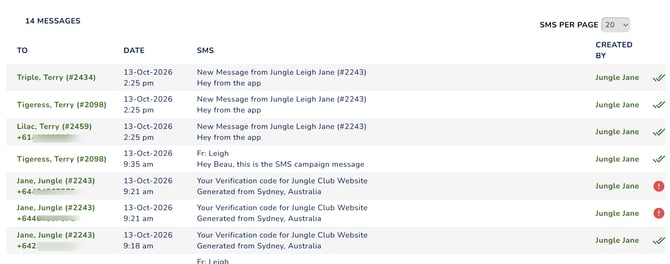
- To: Recipient of the SMS. If a mobile number appears below the recipient's name, it may indicate that their number has been updated. The report shows the number the SMS was sent to.
- Date: Date the SMS was sent or scheduled.
- SMS: Content of the SMS message.
- Created By: User who created the SMS.
 This icon means that the SMS was accepted by the SMS provider
 This icon means that the SMS was failed to send. Please hover your mouse to show the error.
An SMS marked as Accepted means the SMS provider has accepted the message for processing. In most cases, the recipient is likely to receive the SMS, provided there are no network issues, invalid mobile numbers, or carrier restrictions.
How do I configure email settings and view the Weekly Bounce Report?
The system sends a weekly bounced report every Monday morning to the email address entered in the notification email field. If left empty, the report will be sent to the default website email address listed under your organisational details.
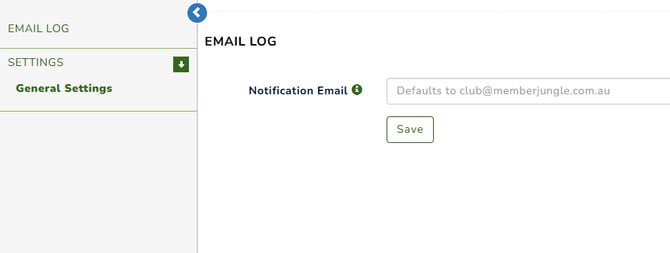
Only bounced email addresses are included in the report.
What are the other reasons emails might not be received?
As the system tracks all bounces, if you have a person or member saying they have not received an email and they are showing as delivered in the email log report (not bounced) the other reasons that the person may not receive the email include,
- They have marked a previous email as SPAM and all emails are now being moved into their SPAM folder
- There may be other measures in place blocking emails blocking or control measures on their email i.e. organisational firewall.